

Settings and Time Zones
This guide covers the settings that shape how your calendar reads, with an emphasis on the one thing distributed teams fight most: time zones. After this page you will set your clock and the first day of your week, put a colleague's zone on screen next to yours so a meeting never lands at the wrong hour, and understand exactly how a repeating meeting behaves when the clocks change.
Opening Calendar Settings
After this section you will find every setting. Open the settings gear in the top bar to reach Calendar settings. Changes save to your account and a confirmation banner tells you the save succeeded. If the server reports a problem, the message is shown to you directly rather than failing quietly. The Connected calendars panel on the same screen is covered in Calendar Sync; sync is not available yet.
Your Time Zone and Clock
After this section you will read every time correctly. Backbuild Calendar shows times in your device's time zone. Turn on 24-hour time for a 24-hour clock, or leave it off for a 12-hour clock; the whole calendar and the event editor follow it. Settings also has a Time zone picker, but the grid does not use it yet: it always follows the zone of the device you are on. Each timed event also carries its own zone (set on the event editor), which is what keeps an event anchored to the place it belongs to even when you travel.
Show More Than One Zone at Once
After this section you will see two or more zones side by side on the grid. The time gutter down the left of the Day and Week views can show up to five ordered time-zone columns, each with an optional short label (up to 40 characters, for example "New York" or "Team, London"). Add a zone, give it a label, reorder the columns, and remove one you no longer need. A 9 a.m. Eastern meeting then reads at a glance in London and in San Francisco without anyone doing the arithmetic in their head.
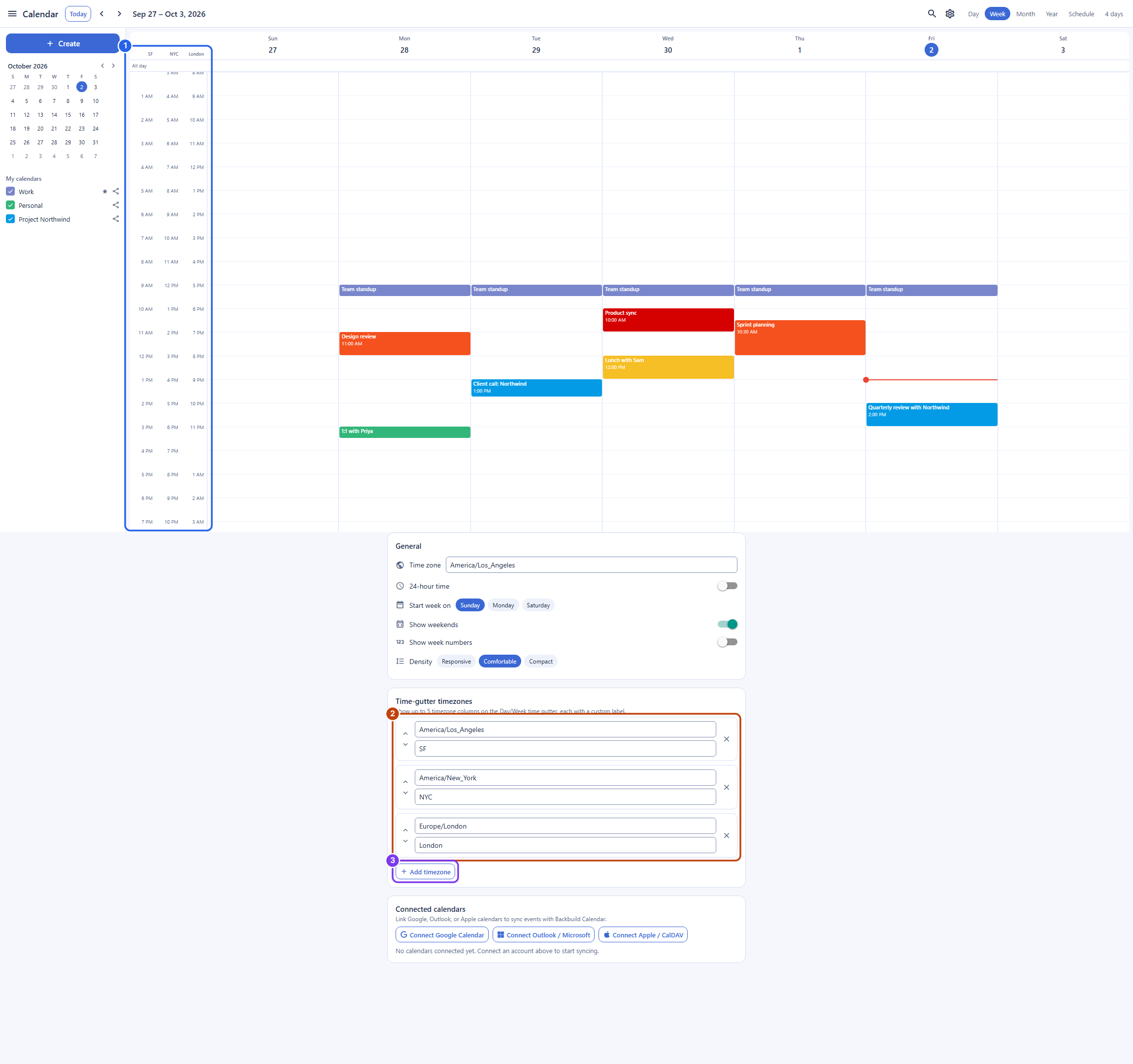
Does each event keep its own time zone, and can I see several zones side by side? Yes on both. A timed event stores the zone you set on it, so it stays anchored to that place; and the Day and Week gutter can show up to five labeled zone columns at once, so a cross-zone meeting reads correctly for everyone without mental conversion.
The First Day of the Week, and Other Display Settings
After this section you will know which display settings change the grid.
- Start week on: choose Sunday, Monday, or Saturday. The Week and Month views, the mini-month, the Year view, and the date range in the top bar all begin the week on the day you choose.
- Show weekends, Show week numbers, and Density: these settings are saved to your account, but they do not change the grid yet. Weekends always show, week numbers do not appear, and the grid keeps one density.
Can I start the week on Monday, show week numbers, or hide weekends? Starting the week on Monday, or on Saturday, works today: choose it under Start week on. Hiding weekends and showing week numbers are saved when you change them, but the grid does not apply them yet.
Recurring Meetings and Daylight Saving
After this section you will understand why a repeating meeting sometimes shifts by an hour, and it will stop surprising you. A recurring event is anchored to a time zone. For its owner it stays locked to the same local time all year, including across a daylight saving change, which is what you want: your 9 a.m. standup is always at 9 a.m. for you. For an attendee in a different zone, the meeting can appear to move by an hour for the few weeks each year when their zone and the anchor zone have switched to or from daylight saving on different dates. Nothing is broken; the two regions are briefly a different number of hours apart. When a recurring meeting spans zones, state the anchor zone in the invitation so everyone reads it the same way. Editing across a series is covered in Recurring Events.
Why does my recurring standup shift by an hour a few weeks a year? Because your zone and the meeting's anchor zone enter daylight saving on different dates, so for a short window they are one hour further apart than usual. The meeting is still anchored correctly; it is the gap between the two regions that changed. Naming the anchor zone in the invite prevents confusion.