

Channels, Conversations, and People
Everything in Backbuild Chat starts in the sidebar: the channels you belong to, the people you talk with, your group conversations, and the virtual workers you run. This guide teaches you to find your way around it, create and run a channel, start a direct or group conversation, and understand what happens when someone leaves. After this page you will set up the conversations your team needs and keep the sidebar tidy.
The Chat Sidebar
After this section you will know where every conversation lives. The Chat sidebar has four lists, each with its own header controls:
- Channels: the channels you are a member of. In the header, the compass opens the channel browser, where you find and join channels, and the + creates a channel.
- People: the people you share a direct or group conversation with that holds a message. Select a name to open your one-to-one conversation with that person. The + starts a new message to anyone in your organization.
- Direct Messages: your group conversations, listed once they hold a message, and a one-to-one conversation whose person is not on your People list yet.
- Virtual Workers: the virtual workers you run or that are shared with you, when they are online. A worker that is offline is hidden unless you star it; Show offline lists the rest.
A bold name has unread messages, and a badge counts unread mentions of you. The Filter conversations box at the top narrows every list as you type, and searches every person in your organization, so you can reach anyone even if you have never talked before.
- Stars: every row carries a star. A starred row moves to the top of its own list; the rest are listed alphabetically, so nothing jumps around when a message arrives. Starring a virtual worker keeps it listed even while it is offline.
- Muting: a muted conversation is dimmed in the list until it has something new for you. See Channel settings.
Create a Channel
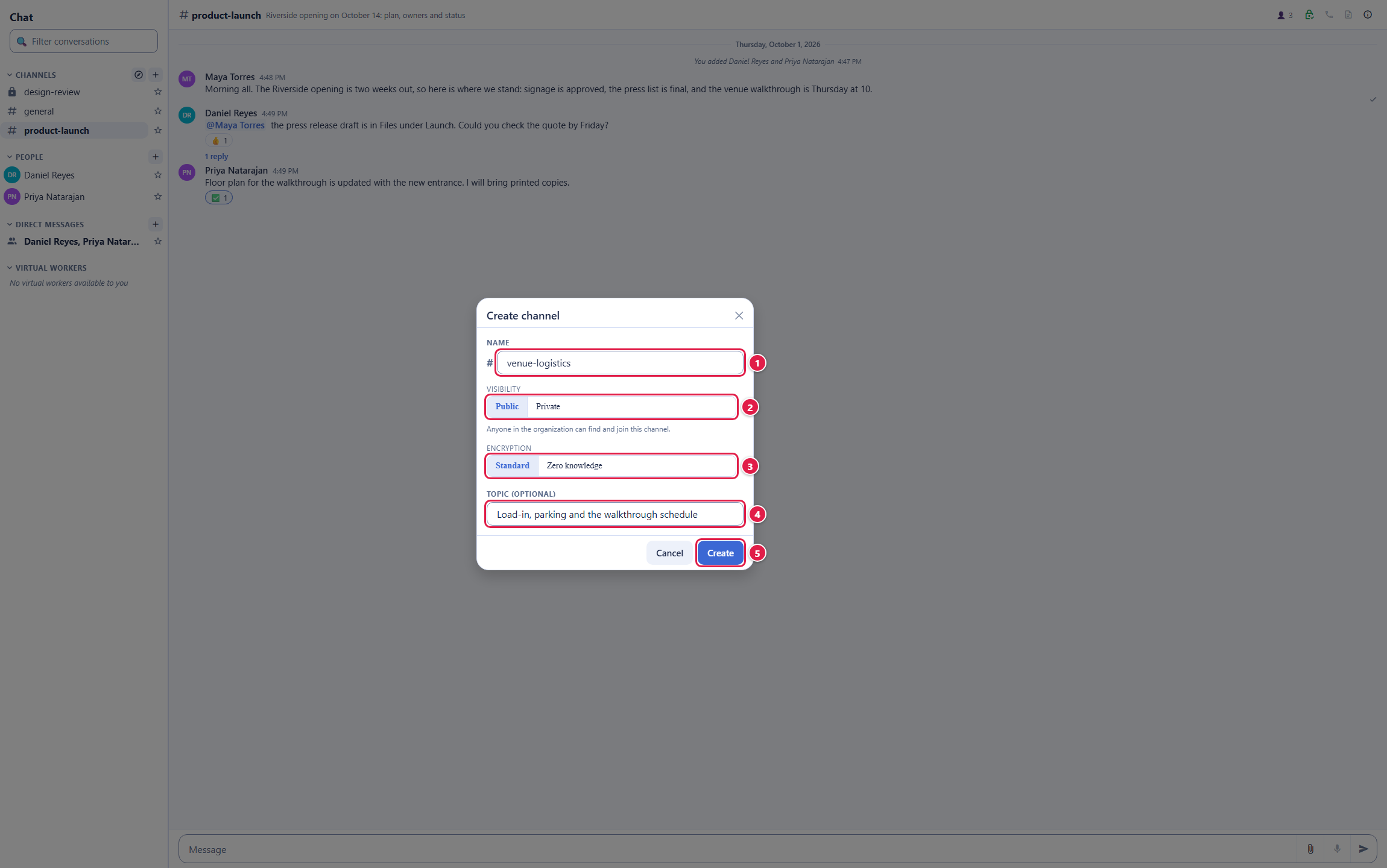
After this section you will have a channel for your team or project. Select the + beside Channels (or Create channel in the channel browser).
- Name: lowercase letters, digits, hyphens, and underscores, up to 80 characters, starting with a letter or digit; spaces become hyphens as you type. Names are unique in your organization.
- Visibility: Public (anyone in the organization can find and join it) or Private (only invited members can find and join it).
- Encryption: leave it on Standard. The Zero knowledge option is shown but cannot be used to create a channel yet.
- Topic (optional), then Create.
You become the channel's owner. Creating channels is part of the Create Chat Channels permission, which the built-in Member, Developer, Manager, Admin, and Owner roles include.
Browse and Join Channels
After this section you will find the channels that matter to you. The channel browser lists the public channels of your organization and every private channel you belong to. Type to filter by name or description, show All, My channels, Available (ones you have not joined), or Archived, and sort A to Z, by newest, or by most members. Select Join to join a public channel; a private channel is joined only by invitation. Opening a public channel you have not joined shows its messages with a preview bar, so you can read before you join.
Members and Roles
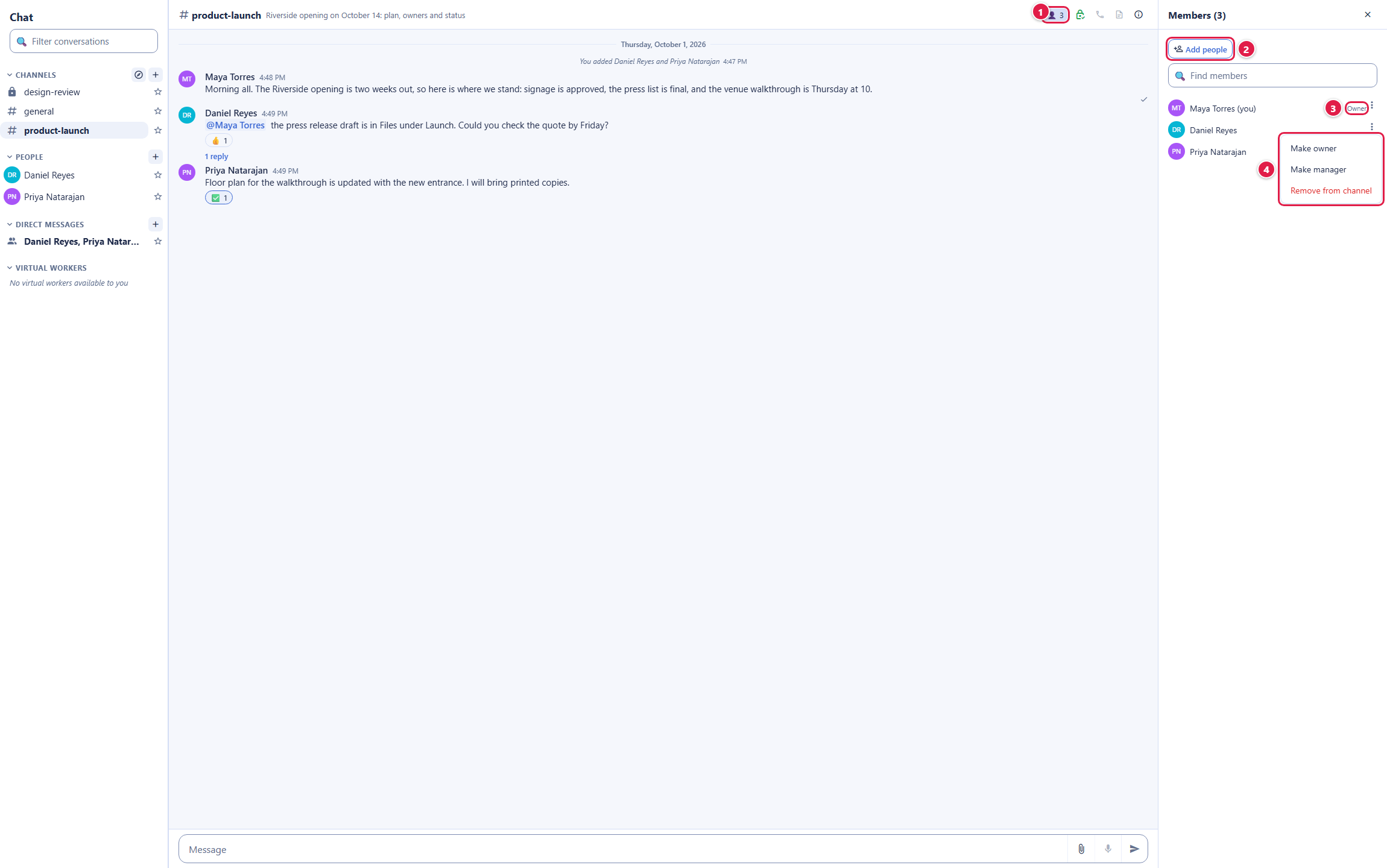
After this section you will run a channel's membership. Open a channel and select its member count (the person icon and number at the right of its header). The Members panel lists everyone in the channel, marks each owner and manager, and lets you find a member by name. Select the count again to close it.
- Roles: each member is an owner, a manager, or a member. Owners and managers edit the topic and description and manage members; owners also rename the channel, change roles, set who may post, make it private, and archive it.
- Add people: any member can add people to a public channel; owners and managers add people to a private one. A person you add to a channel sees its history.
- Remove: owners and managers remove members from the member's menu; a manager cannot remove an owner.
Channel Settings
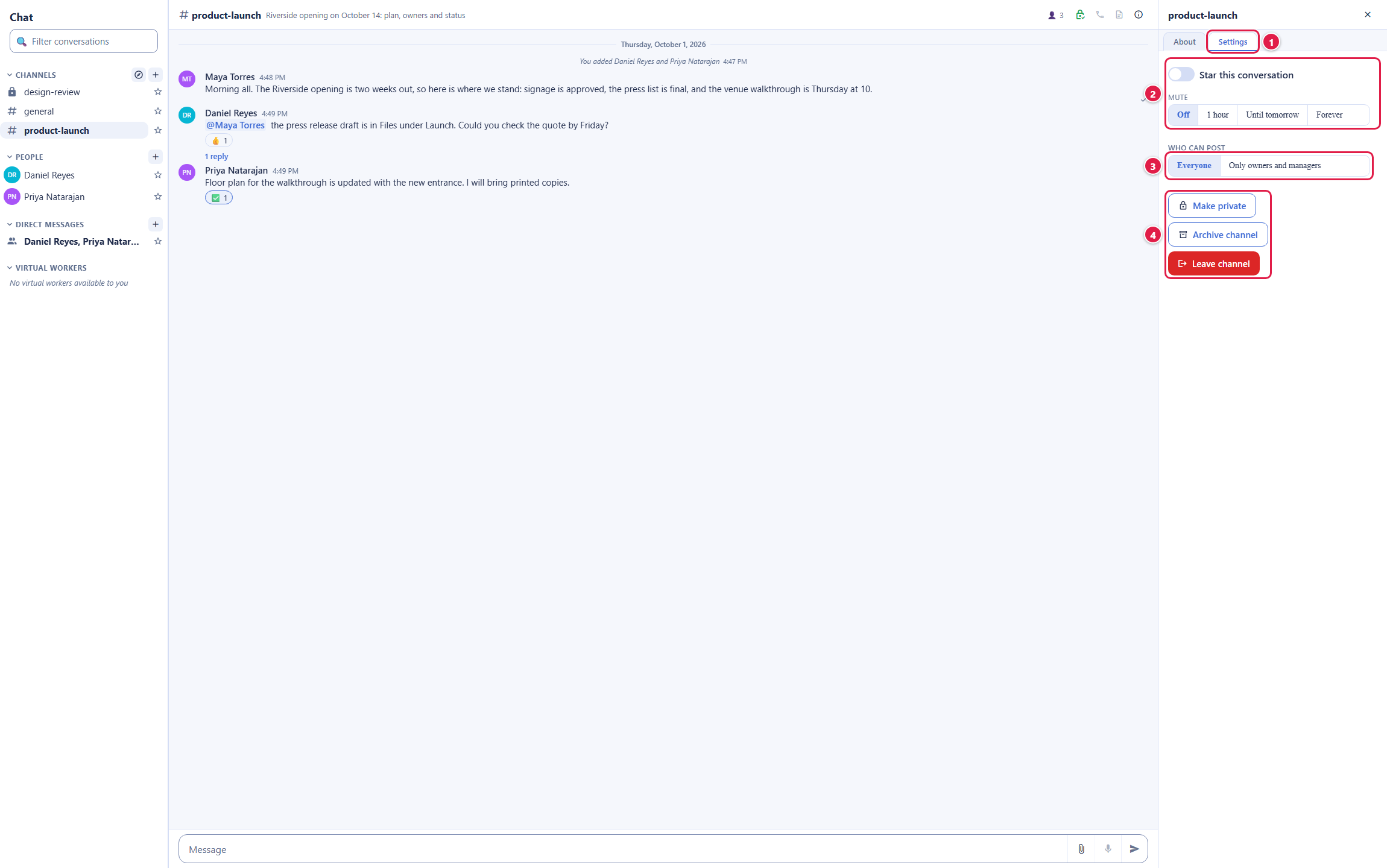
After this section you will tune a channel for its purpose. Select the details button (the i at the far right of the header). Its About tab holds the name, topic, and description; the Settings tab holds the rest:
- Star and Mute: mute for an hour, until tomorrow, or until you turn it back on. Muting is yours alone.
- Who can post: everyone, or only owners and managers, for an announcements channel.
- Make private: turns a public channel private. This is one way: a private channel cannot be made public again, so you confirm by typing the channel's name.
- Archive: an archived channel keeps its history readable and its name reserved, but takes no new messages, reactions, or member changes; an owner can unarchive it.
- Leave: leave a channel you no longer need.
Every organization has a general channel for the whole organization. It cannot be left, archived, or made private, and only people who manage Chat for the organization can rename it.
Direct and Group Conversations
After this section you will talk with one person or a small group.
- One person: select their name under People, or type it in the filter box. If you have not talked before, the conversation opens empty and is listed once it holds a message.
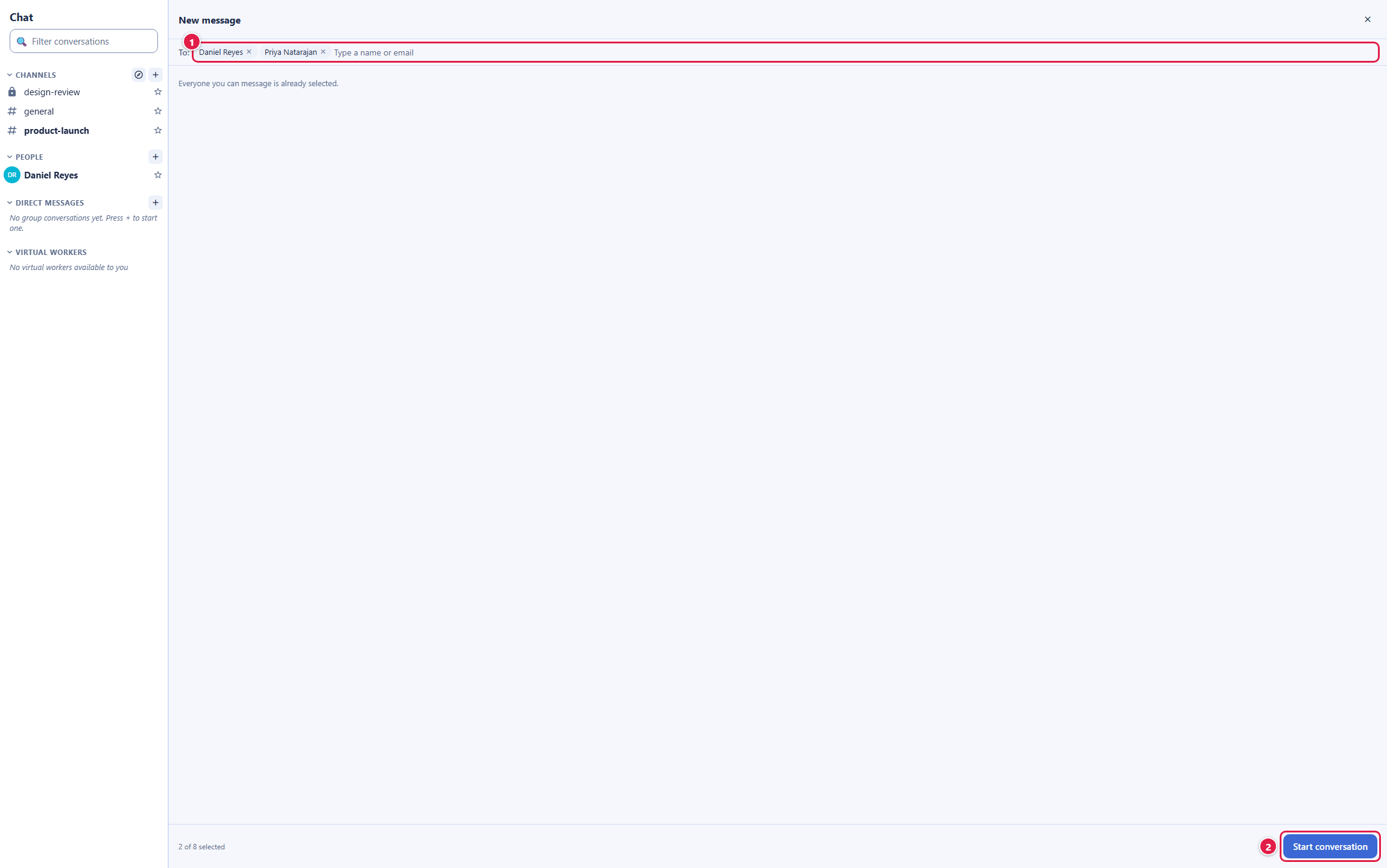
- A small group: select the + beside People or Direct Messages, pick each person in the To field, and select Start conversation. A group conversation holds up to nine people, you included, and you can add people to it later.
- Name and grow a group: any member can give a group conversation a title and an emoji. When a group outgrows a conversation, convert it to a private channel from its Settings tab, with its history.
- Leave a group: leave from the group's Settings tab. A one-to-one conversation cannot be left.
When Someone Leaves the Organization
After this section you will know what happens to their conversations. When a person leaves your organization or is deactivated, they lose access to Chat at once. Their earlier messages stay where they were, under their name, or as Former member when the name is no longer available. A one-to-one conversation with them stays readable, and the message box explains that you can no longer message them. Group conversations and channels go on without them, and a notice in each says they left. If they were a channel's last owner, another member becomes its owner, and a private channel left with no members is archived.
Virtual Workers in Chat
After this section you will reach your virtual workers from Chat. The Virtual Workers list shows the Backbuild Virtual Workers you own or that are shared with you, with a dot for online or offline. Selecting one opens a session with that worker in the conversation pane; it never starts a worker's container on its own. A worker's conversations are AI sessions, kept apart from team conversations, and a virtual worker cannot be added to a channel or a group conversation.
Frequently Asked Questions
Can people outside my organization join a channel? No. Every member of a channel or conversation is an active member of your organization.
Who can see a private channel? Only its members. It does not appear in anyone else's channel browser, and an administrator who manages channels cannot add people to a private channel they do not belong to.
Can I hide a channel without leaving it? Mute it. It stays in your list, dimmed, and you still see it when someone mentions you.