

Backbuild Meetings
Backbuild Meetings is the video meeting app built into your Backbuild workspace. You start a meeting now or schedule one, invite teammates by name or by email, and everyone joins in the browser with nothing to install. Before you are seen or heard you check your camera, microphone, and speaker in a private lobby. Everyone except the host then waits at the door until the host admits them, so the host always decides who is in the room. In the room you share your screen, chat, react, raise your hand, and draw together on a shared whiteboard, while the host spotlights a speaker, removes someone who should not be there, and locks the door. Meetings sit in the same workspace as Backbuild Calendar, Backbuild Mail, and Backbuild Contacts, so a meeting, an event, and an invitation share one identity and one set of roles. After this page you will know what Backbuild Meetings does, how to join and host, what it costs, and where to go for each job.
What You Get
After this section you will understand the shape of the app. Backbuild Meetings is for the meetings a team runs every day: standups, one-on-ones, project syncs, reviews, and planning sessions. It runs in the browser and is built for small groups.
- Join in the browser. Open the meeting from the Meetings hub, an invitation, a calendar event, or a meeting code, and it opens in your browser. A computer with no camera or microphone can still join: you enter without sending audio or video, and the room tells you so.
- A lobby that checks you first. A private camera preview, microphone and camera switches, pickers for your camera, microphone, and speaker, a level meter that moves when you speak, and a Test mic button that records a few seconds and plays them back.
- Start now or schedule for later. Start a meeting and go straight to its lobby, or schedule one with a date and time so it waits in your list.
- Invite by name and by email. Pick teammates from your organization's directory by name, or type email addresses. Each person gets an email invitation with a join button and the meeting code.
- A waiting room the host controls. Everyone except the host waits at the door. The host sees each person's name with Admit and Deny, and an admitted person enters the moment the host decides, with nothing to refresh.
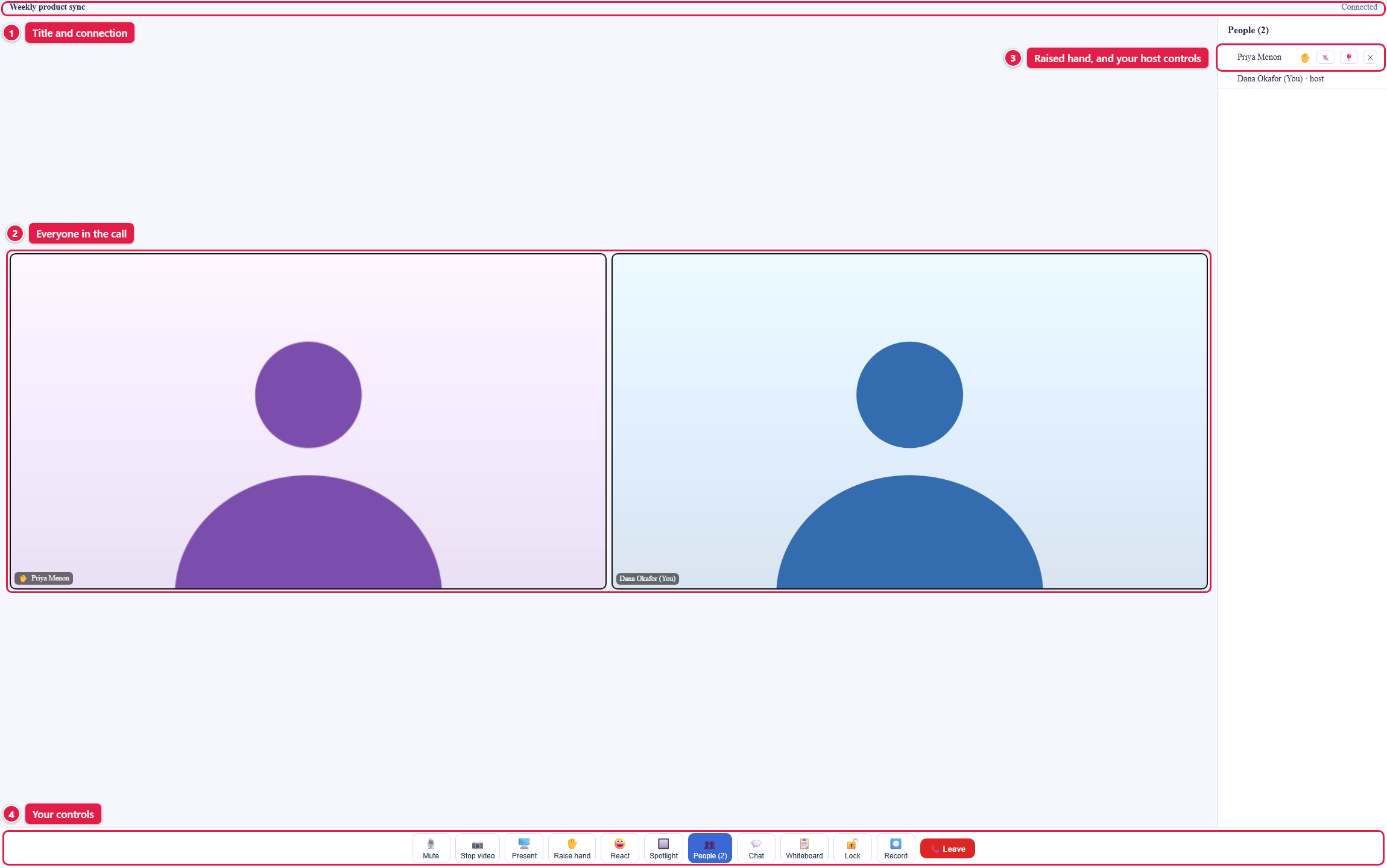
- Host controls. Spotlight a speaker for everyone, remove someone, and lock the room so no one else can join.
- Share, chat, react, and raise a hand. Share your whole screen, a window, or a browser tab; send chat messages; drop a reaction; and raise your hand without interrupting.
- A shared whiteboard. Draw shapes, arrows, freehand lines, text, and pictures together on one board, which stays with the meeting.
- Tied into your calendar and mail. Add a Backbuild Meet to a calendar event, and invitations go out by email with the join button and the code.
- One identity, one audit trail. Meetings run under your organization's membership, roles, and audit logging, not a separate conferencing account.
- Usage credits on every plan. There is no per-host license: meeting time draws your organization's universal usage credits per participant-minute, on every plan including Free. The details are in the plan section below.
Where Backbuild Meetings Fits on Your Plan
After this section you will know what a meeting costs. Backbuild Meetings is on every Backbuild plan, including Free. There is no per-host license and no separate conferencing subscription: meeting time runs on universal usage credits, the same credits that cover the built-in AI models, containers, and the platform's other metered usage.
- Every plan, including Free. Any organization with usage credits can host and join meetings. Plans differ in the credits they include, not in access to the app.
- Charged per participant-minute. Each person in the room draws credits for each minute they are connected, at the rate the Meetings hub shows: currently 2,000 credits per participant-minute. There is no free meetings allowance. Minutes are totaled for each monthly billing period and charged against your credits when the period closes, so your balance does not drop while a meeting is running. Rates are current pricing and can change; the pricing page is the authoritative source.
- The host's organization pays. The whole meeting is covered by the organization it belongs to. People you invite never pay and are never asked for billing details.
- The hub tells you where you stand. The Meetings hub shows that meetings run on usage credits, your organization's balance, and the current price. When the balance is zero, it says so, offers the credit packages right there, and turns New meeting off until credits arrive.
- Credits gate entry, never a meeting in progress. With no credits available you cannot join a live meeting, and the screen says why. Everyone already connected stays connected: a meeting is never cut off because the balance ran out.
- Invitations are email. An invitation is sent as email, and Backbuild sets no email allowance or charge for it. See the outbound routing guide for how your organization's mail is sent.
For scale: a one-hour meeting with four people is 480,000 credits, about $3.20 at entry credit package rates and less on larger packages. The pricing page is the authoritative source for plans, allowances, and rates.
How You Join Your First Meeting
After this section you will know the path from an invitation to the room. Joining takes the same short path every time.
- Open the meeting from the Meetings hub, the Join with Backbuild Meet button in your invitation, the calendar event, or a code you were given. Sign in to Backbuild if you are not signed in already.
- Check yourself in the lobby. Confirm your camera preview, pick the right microphone, camera, and speaker, watch the level meter move when you talk, and use Test mic if you want to hear yourself.
- Press Join now. If you are the host you go straight in. Everyone else waits for a moment while the host admits them, and enters automatically.
- Take part. Share your screen, use chat and reactions, and raise your hand to speak.
Do I need an account or a download to join? You need to be a member of the organization that hosts the meeting, signed in to Backbuild. There is nothing to install: the meeting opens in your browser. The full walkthrough, including the device test, is in Joining a Meeting and the Lobby.
What if my computer has no camera or microphone? You can still join. You enter without sending audio or video, the room shows a notice saying so, and you see and hear everyone else and take part with chat, reactions, and a raised hand.
Choose Your Guide
Each guide teaches one job end to end. Start with the one that matches what you need to do.
- Joining a Meeting and the Lobby: open a meeting, test your camera, microphone, and speaker in the lobby, fix the wrong-device problem, wait to be admitted, and take part with reactions and a raised hand.
- Hosting: Create, Schedule, and Invite: what hosting costs, starting a meeting now or scheduling one, inviting by name and by email, adding a meeting to a calendar event, and renaming, ending, and deleting a meeting.
- In the Meeting: Share, Chat, and Whiteboard: the room and its controls, sharing your screen or a single window, chat and reactions, a raised hand, and the shared whiteboard.
- The Waiting Room and Moderation: admitting people one at a time, locking the room, spotlighting a speaker, and removing someone.
- Administration and Security: for admins and reviewers, how access follows your identity, who can host, what is logged, how meetings draw credits, how media is encrypted and connected, and the honest posture on recording and guests.
- Backbuild Calendar: put a meeting on a calendar event so its join button and code travel on the invitation.
What Backbuild Meetings Does Not Do Yet
Choosing well means matching the tool to the requirement, so here are the edges, each with what you can do today.
- Joining as a guest by link. A meeting admits the members of its organization. To meet with someone outside your organization, add them to your organization as a member first, with a role that grants only what they need; there is no guest link to send yet.
- Recording and transcription. Keep notes in the meeting chat or on the whiteboard. The host's toolbar shows a Record control, but it does not record a meeting yet, and no transcript is produced.
- Muting someone else. Ask the person to mute from their own control bar, or remove them if the noise continues. The mute control in the host's People panel does not turn off another person's microphone yet.
- Sharing hosting. Only the person who created the meeting hosts it; there is no co-host control in the app yet.
- Large meetings. Use it for small groups. Each person's video travels directly to every other person, so a meeting works best with a handful of people, and there are no webinars, breakout rooms, polls, or Q and A.
- Networks that block direct connections. If audio and video do not connect, try another network; chat and the whiteboard keep working. Meetings connect browsers directly and do not yet relay media through a server.
- Screen sharing from the desktop app. Share from the web app; the desktop app's Present control is off.
- Phones. There are no Backbuild mobile apps yet and no phone dial-in, so a phone joins through its web browser; screen sharing needs a computer, because phone browsers do not let a web page share the screen.
- Captions and backgrounds. Live captions and background blur or replacement are not available.
- End-to-end encryption claims. Media is encrypted on every connection, but Backbuild does not describe Meetings as end-to-end encrypted; see Administration and Security.
If a recording, external guests, phone dial-in, or a large audience is a hard requirement, weigh that against the list above. If you want small-group video in the same workspace as your calendar, mail, contacts, documents, and sheets, with a real waiting room, a room lock, and a shared whiteboard, Backbuild Meetings is built for that.