

GitHub for Your Team
GitHub gives your team two things. Each teammate who links their own GitHub
account gets containers that run git and gh
authenticated as them, and one read-only credential paired for the whole
organization lets Backbuild's AI ground its answers in your organization's
code without any teammate linking an account. Every credential you supply is
sealed in your organization's zero-knowledge vault and is never shown on a screen
or returned to a browser. The places a teammate's own token is used are their own
containers and, when they ask a sandbox
to clone a repository, that sandbox, where the code running there can use it.
The Two Connections
GitHub for your team is made of two independent connections. You can set up either one on its own, or both.
- Sign-in with GitHub (per person). Each teammate links
their own GitHub account once: in Settings, open
Integrations under User Settings, choose
GitHub, and select Link GitHub. Backbuild
asks them to unlock their Secrets vault and choose the vault that will hold
the token, then sends them to GitHub to approve. After that, their containers
can push and pull, and
ghworks, as that person, with their own permissions, and they can add the repositories they want their tools to use. The token is never shown on a screen, and it is handed only to that person's own containers and to a sandbox they ask to clone a repository. - Read-only repo access (organization-wide). You pair a single read-only credential for the whole organization so AI working in your organization's containers can read your repositories and ground its work in your actual code, with no teammate needing to link anything. It is read-only by design: it can look, never change.
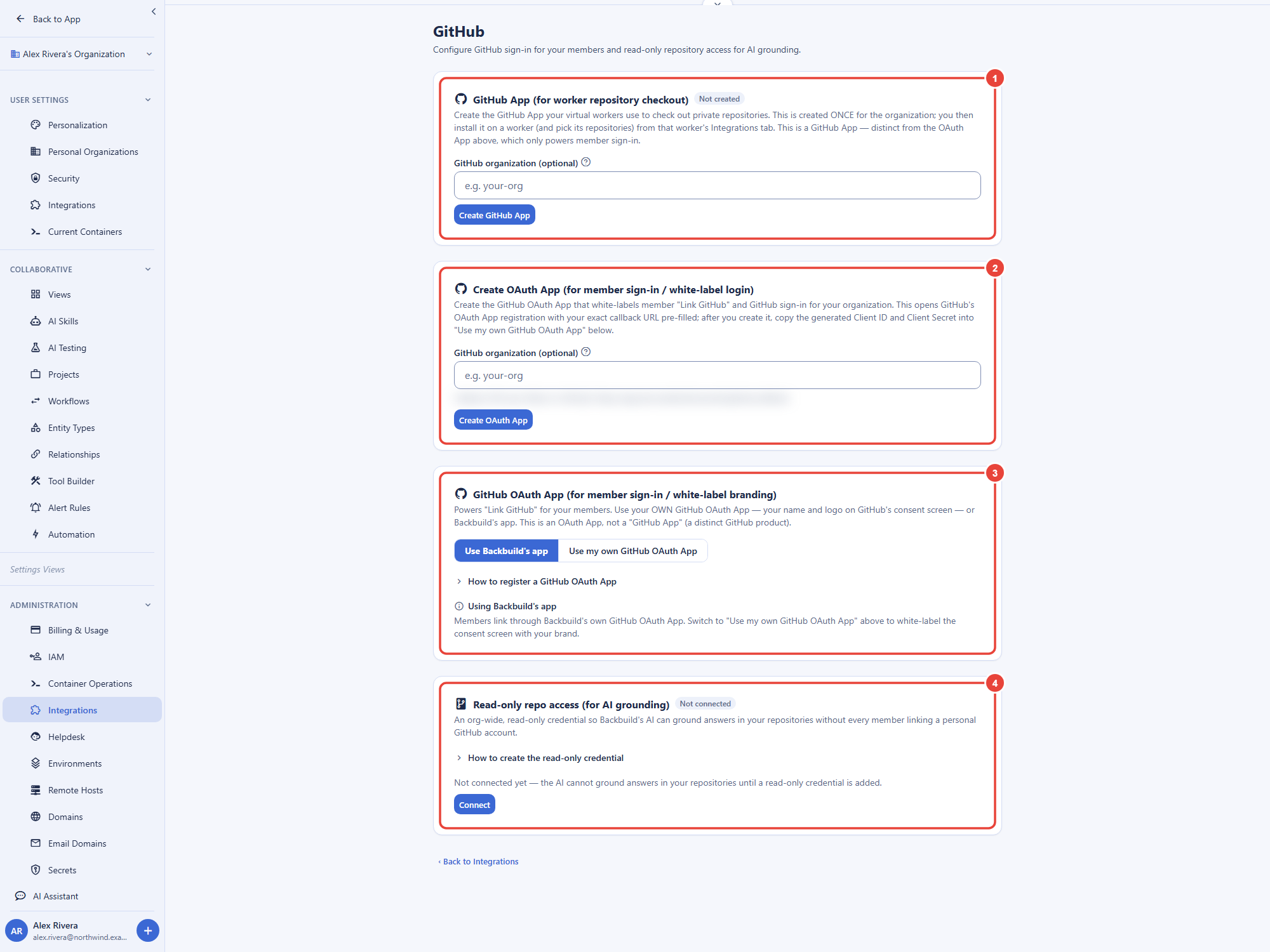
Both organization-wide settings live on one screen. Open Settings, then Integrations under Administration, and select the Developer category. Two cards lead to the screen, GitHub OAuth App and GitHub Read-Only Repo Access; select Configure on either one. The screen has four sections. Create OAuth App starts the registration of your own OAuth App on GitHub, and GitHub OAuth App is where you choose whose app members sign in with; both are covered below. Read-only repo access holds the credential for AI grounding. GitHub App (for worker repository checkout) is meant for Virtual Workers, but installing it on a worker is not available in this release, so leave it alone for now. Opening Integrations needs the permission to manage your organization's settings. The same category also lists GitHub Docs Sync, a separate, write-capable connection that keeps a Backbuild Docs document's LaTeX source in step with a repository; it is not part of the team access described here.
White-Label the Sign-In Screen (Optional)
When a teammate links GitHub, GitHub shows a consent screen naming the app that is asking for access. In the GitHub OAuth App section you choose whose name and logo appear there:
- Use my own GitHub OAuth App. Create an OAuth App under your own GitHub organization so the consent screen shows your brand. This is the recommended choice for a white-labeled product.
- Use Backbuild's app. Leave this choice selected and teammates link through Backbuild's own GitHub app. The consent screen shows Backbuild.
Create Your Own OAuth App
The quickest way is the Create OAuth App section: optionally enter your GitHub organization, so the app belongs to the organization rather than to your personal GitHub account, and select Create OAuth App. GitHub's registration page opens with the callback address already filled in; change the application name to your own brand before you register it. To register it by hand instead, in GitHub go to Settings → Developer settings → OAuth Apps → New OAuth App and fill in:
- Application name: your product's name, which your teammates will see on the consent screen.
- Homepage URL: the address of your Backbuild app.
- Authorization callback URL: paste the exact callback Backbuild shows on the integration screen. It is the same for every organization, so you never register a custom domain, only your app's branding changes.
Then generate a client secret. Back in Backbuild, on the GitHub integration screen, choose Use my own GitHub OAuth App and link the credential: Map an existing vault entry that holds your Client ID and Client Secret, or Enter a new key to create one. If your Secrets vault is locked, the screen asks you to unlock it first. The whole credential is sealed into your organization's zero-knowledge vault as a single entry, so it is encrypted before it ever leaves your browser. Once it is connected, Test confirms the stored credential can be used, and Update credential rotates the secret at any time.
White-labeling changes only the name and logo GitHub shows on the consent screen. The callback address is always Backbuild's, which keeps the sign-in flow safe from redirect tampering.
Pair a Read-Only Discovery Credential
So the AI can ground answers in your code without every teammate linking an account, pair one read-only credential for the whole organization: a fine-grained token, created on a dedicated machine account, that can only read.
- In GitHub, create a fine-grained personal access token on a dedicated machine account that belongs to your GitHub organization, with your GitHub organization as the resource owner. Scope it to the repositories you want the AI to be able to read, and grant only Contents: Read-only and Metadata: Read-only. Do not grant any write permission. Use a fine-grained token, not a classic one: a classic token cannot be limited to read-only access on chosen repositories, so the screen refuses one you enter as a new key. Map only a vault entry that holds a fine-grained token.
- Make sure your GitHub organization allows fine-grained tokens, and have one of its owners approve the new token. Until it is approved, the token cannot read your organization's repositories.
- In Backbuild, on the GitHub integration screen, select Connect under Read-only repo access and link the token: Map an existing vault entry that holds it or Enter a new key, and optionally record its Token expiry, which the screen shows as a reminder to renew. Like every other credential, it is sealed in your organization's zero-knowledge vault. Test then tells you whether it works, is still waiting for approval in GitHub, or has expired or been revoked.
Backbuild then builds a private catalog of the repositories that credential can see (Sync now refreshes it), and an AI working in one of your organization's containers can fetch a read-only copy of any repository in that catalog to ground its work. The read is always read-only: Backbuild only ever clones and fetches your code, never pushes, so even a token that was granted more than it should have been cannot be used to change anything through Backbuild.
How Your Credentials Are Protected
- Zero-knowledge vault. Your OAuth app's credential and the
read-only discovery token are encrypted in your browser before they are
saved. A teammate's sign-in token comes back from GitHub when they approve
and is sealed straight into the vault they chose. Backbuild keeps a reference
to each vault entry and never shows a plaintext credential on any screen. A
teammate's own token is handed only to that teammate's own containers, where
gitandghuse it, and to a sandbox they ask to clone a repository, which keeps it with that sandbox session. - The discovery credential never reaches your workloads. The organization-wide read-only credential is used only by Backbuild itself, to fetch a read-only copy of a repository. The programs that you or an AI run inside a container never receive it, and no teammate can view it, so a person who triggers an AI answer can never walk away with your organization's token.
- Read-only by construction. The discovery path can only clone and fetch. There is no path through Backbuild that could write to your repositories with the discovery credential.
- Sign-in is tamper-resistant. Each link is tied to the teammate's authenticated session and is single-use, so a captured sign-in link cannot be replayed or redirected to another account.
What This Does and Does Not Do
- Per-person sign-in grants each teammate's containers exactly their own GitHub permissions, nothing more.
- Read-only discovery is exactly that: the AI can read the repositories the token can see, and nothing else. It cannot open pull requests, push commits, or change settings.
- Discovery is one read-only credential per organization. It is not a per-user grant and not a way to give the AI write access.
- Disconnecting an organization credential stops all future use immediately. Backbuild drops its link to the vault entry, and disconnecting read-only access also erases the repository catalog it built. The entry itself stays in your vault until you delete it, and Backbuild does not revoke that token or OAuth app at GitHub, so delete or revoke it there as well to cut off access completely.
- When a teammate selects Unlink GitHub, Backbuild tries to revoke that token at GitHub and to erase it from the vault it was sealed in, and the link is removed even if either step does not complete. To be certain the token no longer works, the teammate can also revoke the app's access in their own GitHub settings.
Related
- Launching a Container: the launch screen, sizes, and the in-container AI.
- Terminal, VS Code, and Desktop: the surfaces where
gitandghrun. - Secrets: how your organization's zero-knowledge vault seals every credential.