

Container Policies and Administration
Giving a whole team self-service cloud computers is only safe if you can set the guardrails. Backbuild lets an administrator decide which sizes, backends, and regions people may launch, set a sensible default, and turn containers on or off for a specific project, with every choice enforced at the server rather than merely hidden in the interface. This guide teaches the policy model, giving a contractor containers, the audit trail, keeping container work in a chosen region, and running Virtual Workers on your own hosts. After this page you will be able to offer containers to your team on exactly the terms you intend.
Container policy is set by an administrator with the permission to manage your organization's container policy. Access follows your organization's roles and permissions.
The Execution Policy
After this section you will be able to control exactly which containers your team can launch. An organization's container execution policy is the set of rules that decide what appears on the launch screen and what a person is allowed to spin up. As an administrator you decide:
- Allowed run locations. Each run location pairs a cloud provider with a region. You allow or deny each one; a location you deny is never offered, and a container asked to run there is refused. Because the region is part of the run location, this is also where you keep a workload in a chosen jurisdiction.
- Allowed sizes. Which tiers are selectable in each allowed run location, with each tier's vCPU, memory, and universal credit cost per hour shown so you can weigh capability against spend.
- The defaults. The run location and size a person gets when they do not choose one, and whether people may pick a non-default run location at all.
You set these across two places in Settings. The allowed run locations and sizes are configured in Container Operations, which presents them on a Run locations tab and a Sizes tab alongside the live container inventory and the Docker hosts tab, where you decide whether Virtual Workers run on your own hosts. The master switch that turns containers on or off for the whole organization, the limit on how many may run at once, the automatic AI session lifecycle, and per-project overrides live in Policies, under Containers, which also shows a read-only summary of the allowed run locations and sizes and links across to Container Operations.
A person only ever sees the run locations and sizes you permit. There is no way to select something you disallowed, because a location or size is offered only if the policy allows it.
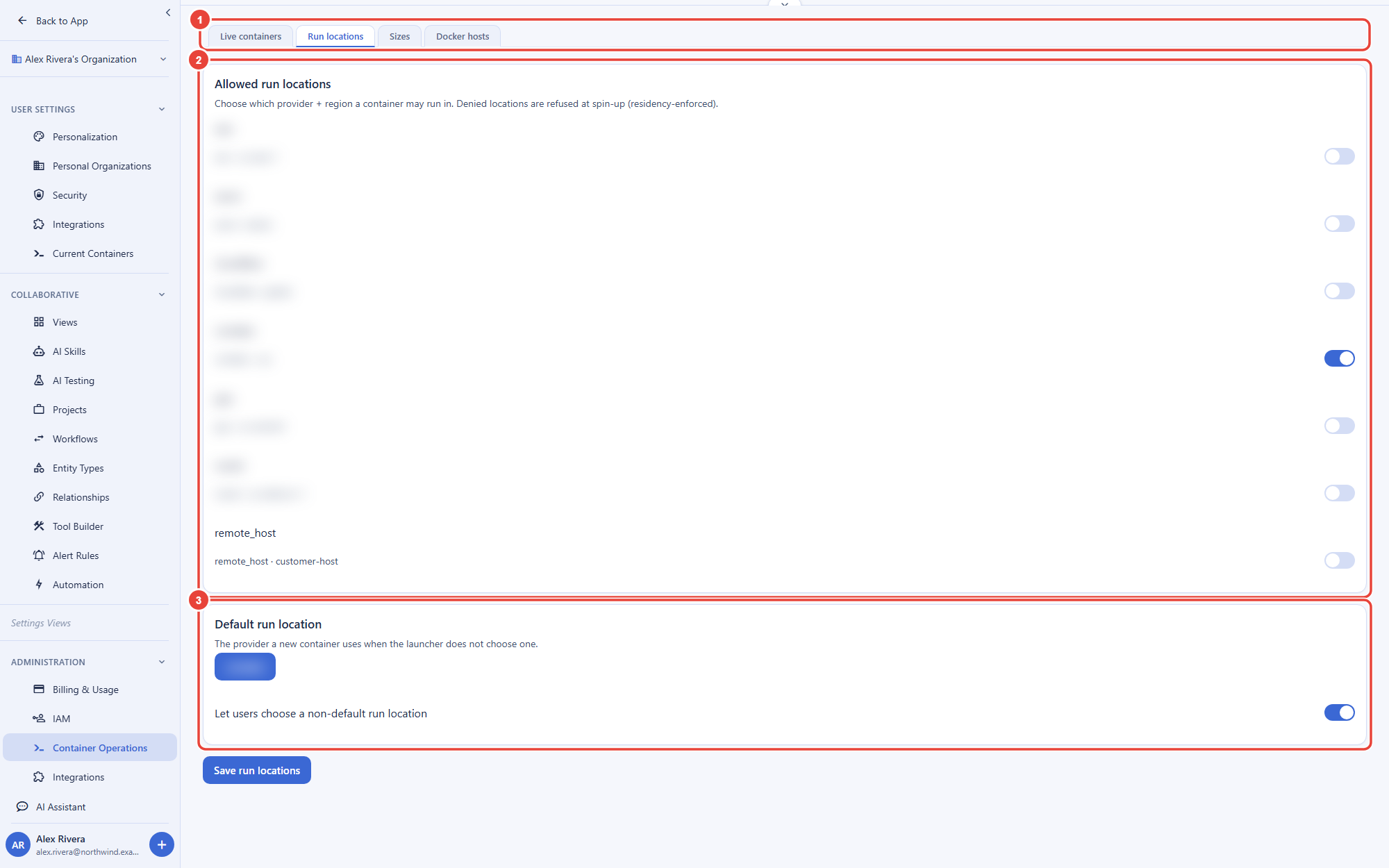
Leave the remote_host entry at the end of the list off. No container a person launches can run there; your Virtual Workers reach your own hosts through the Docker hosts tab instead, as the Remote Hosts guide explains.
Enforced Server-Side, Not Just Hidden
After this section you will be able to answer, for a security review, whether the policy is a real guardrail. It is. The policy is enforced at the server, on every launch request, regardless of what client made it. A request to launch a size or backend that your policy does not allow is refused by the server, not merely absent from the interface. A developer cannot get around the rule by editing a request, scripting the API, or using a different client, because the decision is made where the container is actually provisioned, not in the browser.
Can a developer bypass the interface and launch a blocked size? No. The allowed backends, sizes, and regions are checked server-side on every launch. A disallowed choice is refused no matter how the request is made, so the guardrail holds whether someone uses the app, a script, or the API.
Per-Project Overrides
After this section you will be able to turn containers on or off for one project without changing the rule for everyone. The organization policy is the baseline. Under Per-project overrides, in Settings, then Policies, then Containers, pick a project and set Containers for this project to Inherit, Force on, or Force off. Force off keeps one sensitive project free of containers while the rest of the organization uses them. The organization's master switch always wins: while containers are off for the organization, no project can launch them, whatever its override says. Reset to inherit returns the project to the organization's rule. The allowed run locations and sizes come from the organization policy.
Giving a Contractor or Partner Containers
After this section you will know what decides a collaborator's reach. The permission to launch containers comes from a person's role in your organization, under your roles and permissions, and it applies across the organization rather than to one project. So give an outside collaborator a role that includes launching containers and as little else as their work needs. Their containers run under your policy, are charged to your organization, and are recorded in your audit trail, and each container's home folder is private to them and the project it was launched in. When the engagement ends, removing them from your organization removes their access, and their activity stays in the audit trail.
Can I limit a contractor's containers to one project? Not per person: anyone whose role lets them launch containers can launch one from any project in the organization. You can keep a project container-free for everyone with a per-project override, keep the rest of a collaborator's role narrow, and review what they did in the audit log. If a collaborator must be kept fully apart from the rest of your work, give them a separate organization.
The Audit Trail
After this section you will know what is recorded. Container activity is audit-logged with the identity of the person who performed it. Who launched what, when, and the lifecycle and access events around a session, are recorded, so you can review usage and answer a compliance question with a real record rather than a guess. This is the same tamper-evident audit approach used across the platform; see Security and Compliance.
Data Residency
After this section you will be able to keep container workloads in a chosen jurisdiction. Because the region a container runs in is part of the policy you set, you can restrict where containers may be scheduled, and so where the work inside them runs and where the data they work on is processed. The home folder a container keeps between sessions is stored separately, in Backbuild's own storage, and the run locations you allow do not change where it is kept. Weigh that for a requirement about where data is stored, not only where it is processed.
Running Virtual Workers on Your Own Hosts
After this section you will know that you are not locked to managed nodes. Containers run on Backbuild's managed cloud backends by default. An administrator can also pair Linux machines your organization controls under Settings, then Remote Hosts, and turn on their Docker host role. The Docker hosts tab of Container Operations then decides where your Virtual Workers' containers run: Backbuild's cloud, all of your Docker hosts, one host pool, or a list of hosts, with per-worker pins and an optional fallback to the cloud. A worker's container on your own host draws no container compute credits, so teams with hardware or negotiated cloud pricing of their own can use it, under the same audit trail. Containers people launch from a project keep running in the cloud run locations above.
Do we have to use your servers, or can we bring our own? For Virtual Workers you can bring your own: pair a Linux host, turn on its Docker host role, and place workers on it. See Remote Hosts for pairing, the host firewall, OS accounts, and the placement policy.
Where to Next
- Roles and Permissions: how organization roles govern who can launch and administer containers.
- Security and Compliance: per-organization isolation, the audit trail, and the platform's wider posture.
- Agents, Automation, and the API: driving containers programmatically under the same policy.
- Remote Hosts: pairing your own Linux machines and running Virtual Workers on them.