

In the Meeting: Share, Chat, and Whiteboard
This guide teaches the live room: the status bar and the video tiles, the control bar, sharing your screen the way you intend, chatting and reacting, raising your hand, and the shared whiteboard. After this page you will run a working session, share cleanly, and collaborate without reaching for a second app.
The Room and Its Controls
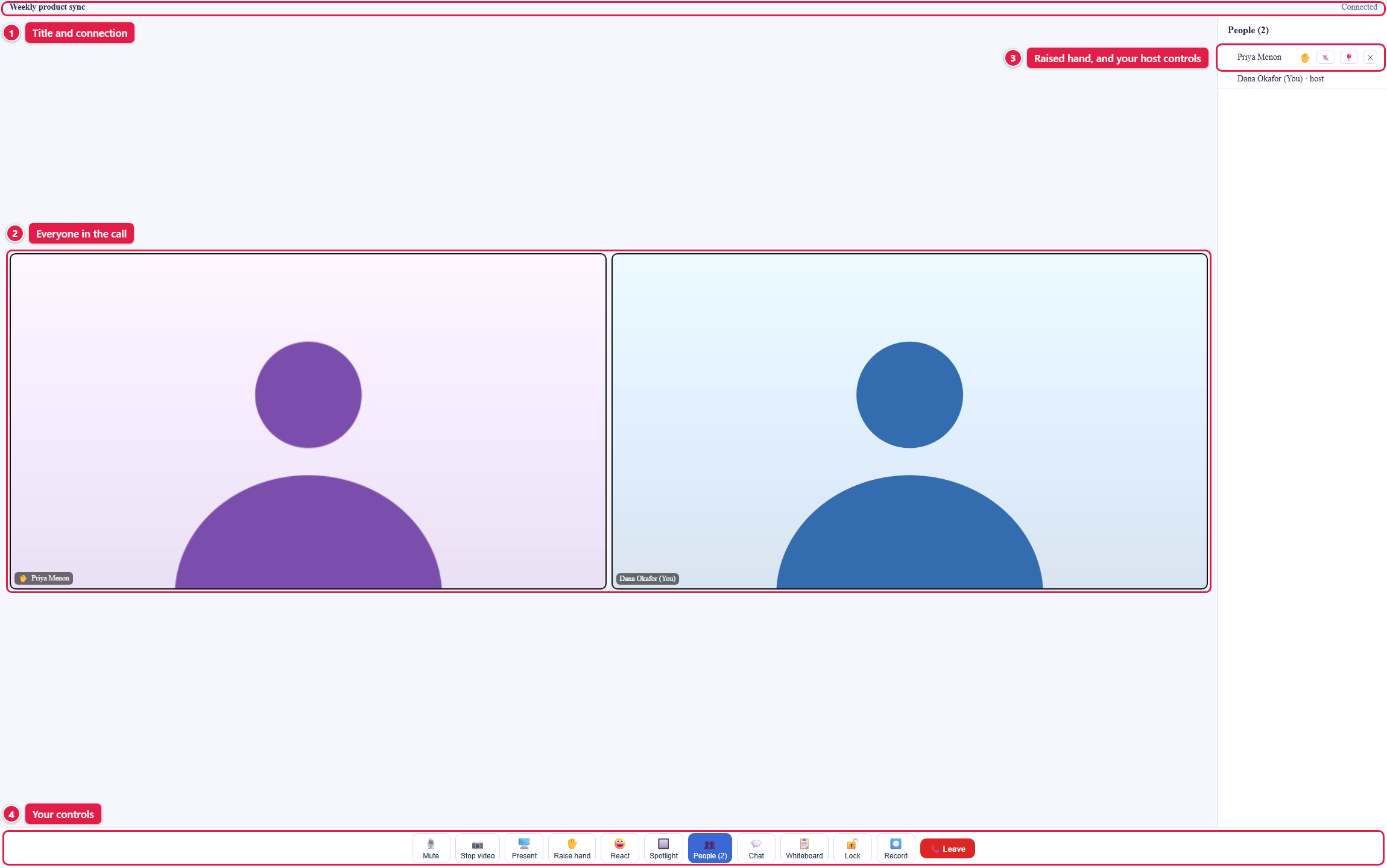
After this section you will read the room at a glance. The room shows one video tile per person, your own included, with each person's name on it. The person speaking is highlighted so you can follow who has the floor. When someone shares their screen, it moves to the main stage for everyone.
The status bar across the top shows the meeting title and your connection: Connecting, Connected, or Reconnecting. While you are the only person in the room it shows Connecting; it changes to Connected when someone else joins. A lock mark appears there when the host has locked the room.
The control bar along the bottom is your toolkit, left to right:
- Mute and Stop video turn your microphone and camera off and on.
- Present shares your screen.
- Raise hand and React let you take part without talking over anyone.
- Spotlight switches your own view between the grid of tiles and one large speaker; press it again for Grid.
- People opens the list of everyone in the room, with the count.
- Chat and Whiteboard open alongside the call.
- Lock and Record appear for the host only. Lock is taught in The Waiting Room and Moderation. Record does not record a meeting yet.
- Leave takes you out of the room; the others carry on.
Sharing Your Screen, a Window, or a Tab
After this section you will share exactly what you mean to, and nothing more. Press Present and your browser asks what to share. This is where you protect your privacy: sharing one window or one tab keeps the rest of your screen, your notifications, and your other tabs out of view.
- Your entire screen shows everything on that display, notifications included. Use it when you move between several apps.
- A window shows only that application window. Use it for a focused demo of one app.
- A browser tab shows only that tab. Use it to present one web page or document.
Your share appears on the main stage for everyone else. Press Stop share to end it. In the Backbuild desktop app the control reads Share (web only) and is off; share from the web app.
Chat and Reactions
After this section you will contribute without interrupting. Press Chat to open the meeting chat beside the call, type a message, and send it to everyone in the room: a link, a question, or a note that does not need you to unmute. Press React and pick one of six emojis; it appears over the video for a few seconds and disappears on its own, so applause or a thumbs up never derails the speaker.
Raising Your Hand
After this section you will signal to speak without cutting in. Press Raise hand. A hand appears on your tile and beside your name in People, so the host can bring you in at a natural break. Press Lower hand when you are done.
The Shared Whiteboard
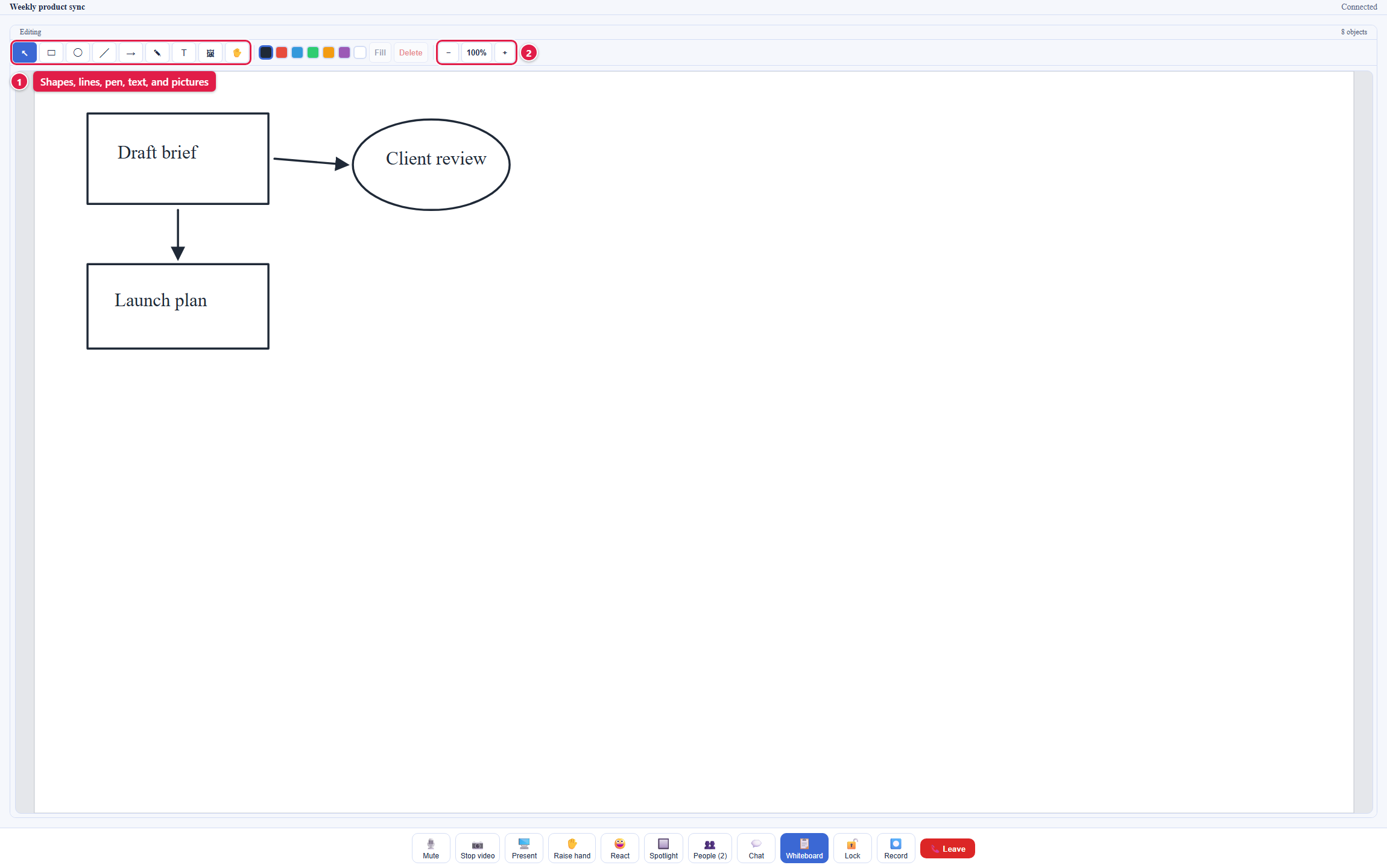
After this section you will sketch together without a second tool. Press Whiteboard and a shared board opens for the meeting; everyone who opens it sees and edits the same board as you work. The toolbar has Select, Rectangle, Ellipse, Line, Arrow, Pen, Text, Image, and Pan, a row of colors, Fill, Delete, and zoom controls. Drag on the board to draw a shape, click with Text to type a label, and use Select to move or resize what you drew.
Does the whiteboard survive after the call, and where is it? Yes. The board belongs to the meeting: open the meeting and press Whiteboard to return to the same board. It is not listed with your project documents. One consequence: a meeting whose whiteboard was used cannot be deleted from the hub yet, so keep notes you may want to delete in the meeting chat or a Backbuild Docs document.
Frequently Asked Questions
What does the connection state at the top mean? Connected means you are live with the others. Connecting means you are still joining, or that you are the only one in the room. Reconnecting means your connection dropped briefly and is being restored; if it stays there, check your network.
Is anything recorded when I share my screen? No. Backbuild Meetings does not record meetings yet, so nothing you share is saved.
Can I change the layout? Yes. Spotlight on the control bar switches your own view between the grid and one large speaker. A shared screen moves to the main stage on its own, and the host can spotlight one person for everyone.
Can the meeting cut off if my organization runs out of usage credits? No. Credits gate entry to a meeting, never a meeting in progress. Everyone connected stays connected until the meeting ends.