

Remote Desktop
Backbuild Remote Desktop is where you reach the graphical desktops that belong to you. Its My Devices screen lists your running containers and the other Backbuild apps signed in to your account, and Connect on a container opens its live Linux desktop in your browser, ready to watch or to drive. After this page you will know what the screen shows, how to open and control a desktop, how devices come and go, and exactly how the connection is protected.
Remote Desktop is available on every plan. A container's desktop runs while the container runs, so it draws the container's usage credits; see Managing Sessions, Persistence, and Credits.
What the Screen Shows
After this section you will be able to find every desktop you can open. Select Remote Desktop in the app's sidebar. The My Devices screen opens with two kinds of entry:
- Your running containers. Each running container has a card labelled Container, with its size, its status, and a Connect button. Containers you launch from a project and the containers of Virtual Workers you hired or are the human manager of both appear here. If your role lets you manage your organization's containers or connect to their terminals, every running container in the organization is listed, but Connect opens only a desktop you may open (see How the Connection Is Protected below).
- Your signed-in apps. Each Backbuild desktop app signed in to your account is listed as a device, with This device marking the one you are using, Connect on the others, and Remove on each.
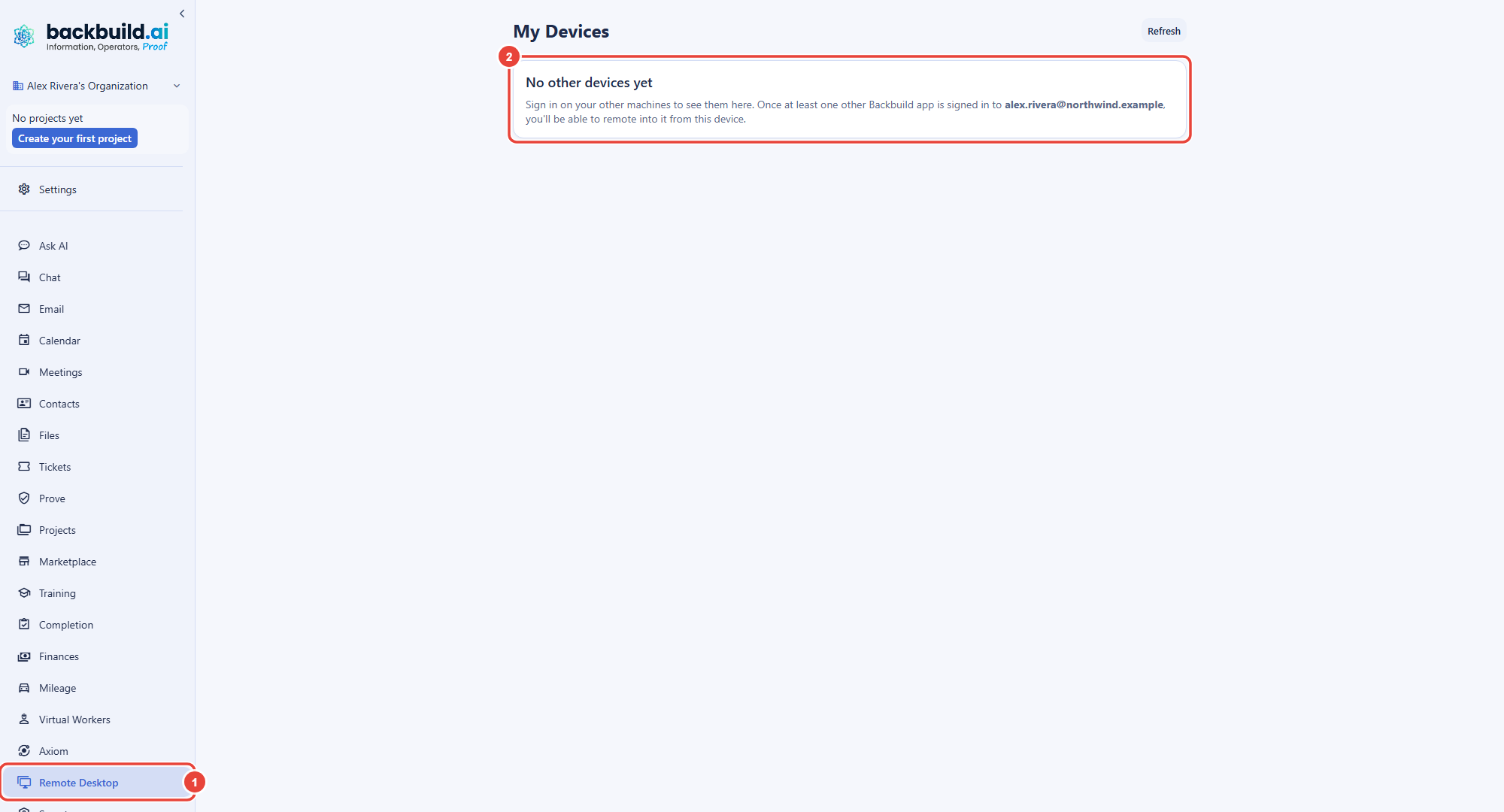
Refresh reloads the list, and running containers are rechecked on their own about once a minute.
Open a Container's Desktop
After this section you will be able to see and drive a container's desktop. Select Connect on a container. Its desktop opens in the browser, the same desktop the container's own Desktop tab shows (see Terminal, VS Code, and Desktop).
- Watch. The desktop opens for viewing, so nothing you do in the page reaches the container yet.
- Take control. Select Take control to send your mouse and keyboard to the container. A banner across the top reads Control captured.
- Give it back. Press Esc or Ctrl+Alt, or select Release control, to return your keyboard and mouse to the page without closing the desktop.
Because a container's desktop is programmatically reachable, an AI agent can also drive it through Backbuild's agent tools; see Agents, Automation, and the API.
Your Own Machines
After this section you will know what a signed-in device is for, and what is not available yet. Signing in to the Backbuild desktop app on a computer registers it as one of your devices, and it then appears under My Devices on your other signed-in apps. Remove takes a device off your account and signs it out; signing in on it again registers it again.
Viewing and controlling the screen of your own computer from the browser is not available in this release: the Backbuild desktop app does not yet share its screen, so a device's Connect has nothing to show. Use Remote Desktop today for your containers' desktops.
How the Connection Is Protected
After this section you will be able to answer, for a security review, exactly how a desktop connection is protected.
- Encrypted in transit. The desktop streams from the container to your browser over a TLS-encrypted connection through Backbuild. The connection details, opened from the connection state in the viewer, report the transport as TLS and leave every post-quantum field n/a: the desktop stream does not carry the post-quantum channel the container's terminal uses, and Backbuild does not claim one for it.
- Authorized on every connection. Each time a desktop opens, Backbuild checks that you are an active member of the organization, that you hold its permission to connect to desktops, and that the container is yours or belongs to a Virtual Worker you hired or are the human manager of. A container in another organization cannot be reached at all.
- View first, control on request. A desktop opens for watching, and your input reaches it only after you select Take control.
- Recorded. Opening a desktop session is audit-logged with your identity.
Is the desktop stream post-quantum protected? No. It is protected by TLS in transit. The container's terminal runs a separate hybrid post-quantum channel, and the connection details of each surface report only what that surface has verified.
Who can open a container's desktop? Its owner, and for a Virtual Worker's container, the person who hired the worker and its human manager, provided their role allows connecting to desktops. Being able to edit the worker, or administering your organization's containers, does not open its desktop.
Related Reading
- Terminal, VS Code, and Desktop for the container's Desktop tab and its controls.
- Sandbox Execution for the API-first container model.
- Security & Compliance for the platform's wider security posture.