

Backbuild Mail
Backbuild Mail is the email client and mailbox service built into your Backbuild workspace. It gives you professional email at your own domain, a real-time inbox that stays current across every device, and the everyday tools heavy email users expect: labels, filters, full-text search, keyboard shortcuts, and drafts that save as you type. It is part of the free workspace, next to Backbuild Docs, Backbuild Sheets, and Backbuild Calendar. After this page you will know what Backbuild Mail does, how to create your first mailbox and send a message, and where to go for each task you need to accomplish.
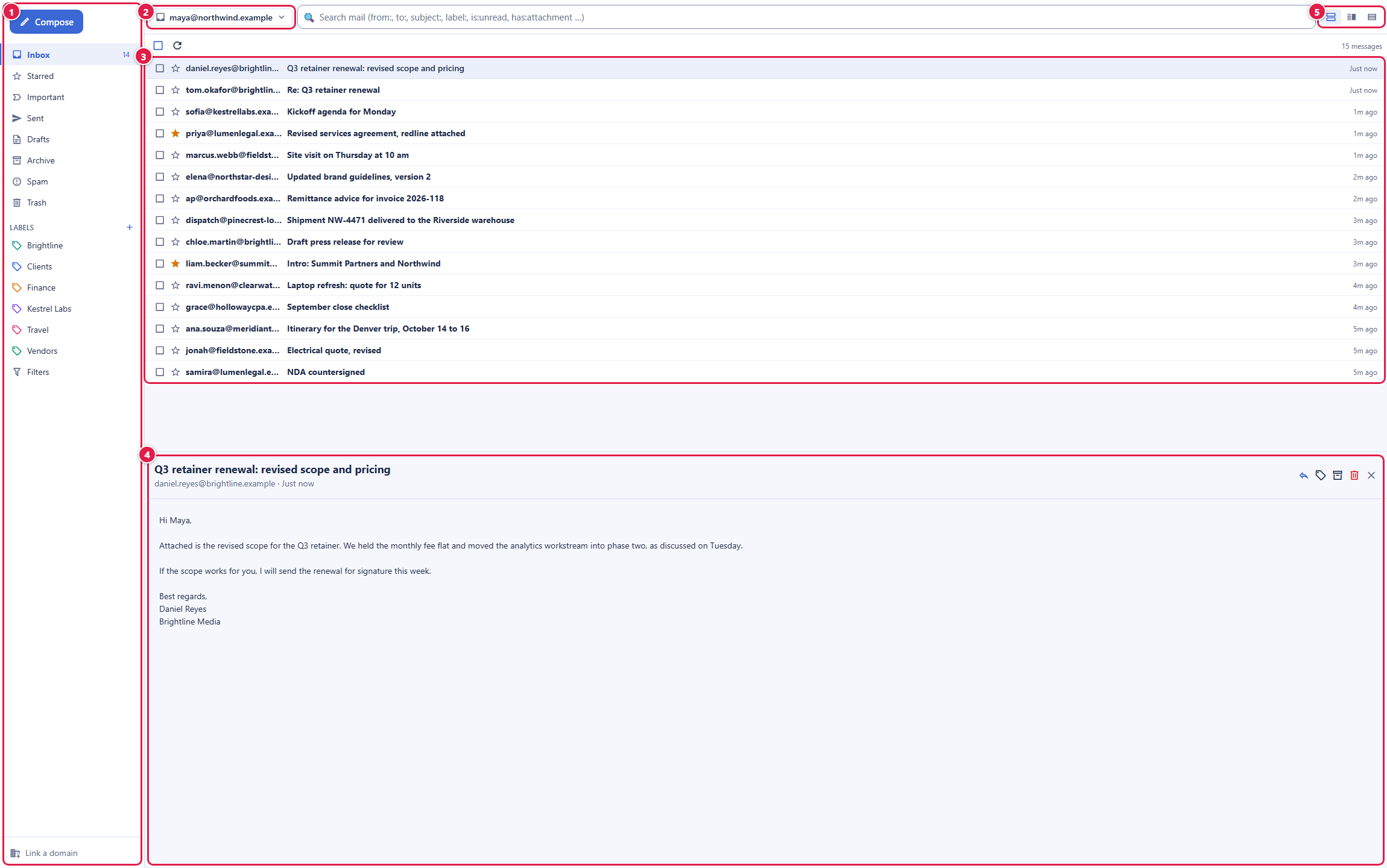
What You Get
After this section you will understand the shape of the product and which guide answers your question. Backbuild Mail is a full mailbox, not just a send-only relay. You receive real inbound mail addressed to your domain, read and organize it, and send from an address you own and control.
- Email at your own domain, on every plan. Link a domain you own and Backbuild Mail walks you through the DNS setup so mail arrives as your brand, not a generic address. Included on Free.
- A real-time inbox. An open mailbox is one live object shared across every device you sign in from. New mail, reads, stars, label changes, and deletes appear everywhere at once, with no manual refresh.
- Organize without busywork. Labels tag messages, filters sort incoming mail automatically, and full-text search finds anything fast.
- Every mailbox you work from, in one place. Email opens on your own inbox, and a switcher in the toolbar moves you to another mailbox you own or to the inbox of a virtual worker you run.
- Team addresses without extra seats. Run an address such as support@ or hello@ without paying for a separate seat per address, for example by giving it to a virtual worker whose inbox you supervise.
- Send through your own Resend account. Outbound mail sends through your organization's Resend account, chosen per sending domain and routed by category. Resend is the only sending provider today; a built-in Backbuild sender and other providers are on the roadmap.
- Drivable by API and AI agents. The whole mailbox and domain surface is available over the public REST API and as native MCP tools, so agents and scripts can provision and manage mail.
Create a Mailbox and Send Your First Message
After this section you will have a working mailbox and a sent message. The fastest path to a professional address is to link a domain first, but you can explore the client immediately.
- Open Backbuild Mail from the workspace sidebar.
- Link your sending domain. If you want mail at you@your-domain, add the domain and follow the guided DNS setup. On Cloudflare, GoDaddy or Amazon Route 53 the wizard publishes and verifies the records for you; on Namecheap or any other DNS host it shows each record with a copy button and tells you when each one is live. See Sending Domains and DNS Verification.
- Set up sending through your Resend account. Verify the domain in your organization's Resend account and link your Resend key to it in the wizard's outbound step. Until then, mail you send from the domain is not delivered, though inbound mail arrives either way. See Outbound Routing and Allowances.
- Create a mailbox for the address you want to send and receive from, for example you@your-domain. See Mailboxes, Inbox, and Reading.
- Compose and send. Click Compose, add one or more recipients, write your message, and send. See Composing and Sending.
Do I need to be technical to get email at my own domain? No. The domain setup is a guided wizard that shows you exactly what to do, checks each step, and confirms it with a checkmark. On Cloudflare, GoDaddy or Amazon Route 53 the wizard publishes the records for you, so there is nothing to edit by hand to receive mail; to send, you also verify the domain in your Resend account. The Sending Domains guide walks the whole flow.
Included on Every Plan
After this section you will know what is included and what you pay for. Email at your own domain is part of the workspace on every plan, including Free, the same way Backbuild Docs and Backbuild Calendar are. There is no separate mailbox subscription and no per-seat charge for a team address.
- Outbound mail: mail you send through your Resend account carries no Backbuild allowance and no Backbuild charge; Resend bills it under your Resend plan. An included allowance and usage credits will apply to the built-in Backbuild sender when it ships.
- Mailbox storage: each mailbox you create holds up to 1 GB. When a mailbox reaches its quota, new incoming mail is not delivered to it until space is freed, and the sender does not receive a bounce saying so. The app does not yet show how much of a mailbox's storage is in use.
The pricing page is the authoritative source for what each plan includes.
Choose Your Guide
Each guide teaches one job end to end. Start with the one that matches what you need to do.
- Mailboxes, Inbox, and Reading: create mailboxes, switch between the mailboxes you can read, give a virtual worker its own inbox, work the real-time inbox, place the reading pane, and read across every device. How your mail is stored and protected.
- Sending Domains and DNS Verification: link a domain, prove ownership, provision DNS with the guided wizard, and reach the inbox with proper authentication. Migrating from another provider without losing mail.
- Composing and Sending: the compose window, attachments, replies, drafts, and the send limits.
- Labels, Filters, and Search: tag with labels, sort incoming mail with filters, search, keyboard shortcuts, and your reading-pane setting.
- Shared Mailboxes and Delegation: who can read and send from a mailbox, how to run a team address today, governance and audit, and auto-provisioning mailboxes for members.
- Outbound Routing and Allowances: verify your domain with Resend, link your key, route mail by category, and what Backbuild charges for sending.
- API and AI Agents: drive mailboxes and domains over the REST API and MCP tools, and test a sending route end to end.
What Backbuild Mail Does Not Do
Choosing well means matching the tool to the requirement. Backbuild Mail is a real mailbox designed for professional email at your own domain inside the workspace. It does not expose IMAP, POP, or SMTP endpoints, so you read and send through the Backbuild web and desktop apps rather than connecting a third-party mail program. It is also not end-to-end encrypted: the service can read message bodies, which is what makes server-side full-text search and safe rendering of message HTML work. If your defining requirement is that the provider be cryptographically unable to read your mail, choose a zero-access provider. For the full treatment of how mail is stored and protected, see Mailboxes, Inbox, and Reading.