

Known Locations in Backbuild Miles
Most drivers start and end most of their drives at a handful of places: home, the office, a regular pickup, the airport. Known locations are where you save those places once. Backbuild Miles then draws them on every map and can anchor a drive's start or end to them, so the log reads the real place rather than wherever the GPS fix happened to land. After this page you will be able to add a place, place its pin exactly, choose how close counts as “there”, give it the icon you will recognise at a glance, and know what the app does with it.
Where Known Locations Live
After this section you will know how to reach your saved places and what happens to them when you change phones.
Open the navigation menu and choose Known locations. The same list is one tap away from Settings, under Saved places. The screen lists every place you have saved, each with its icon, name, address, place type, detection radius and default classification, and an Edit and a Remove action.
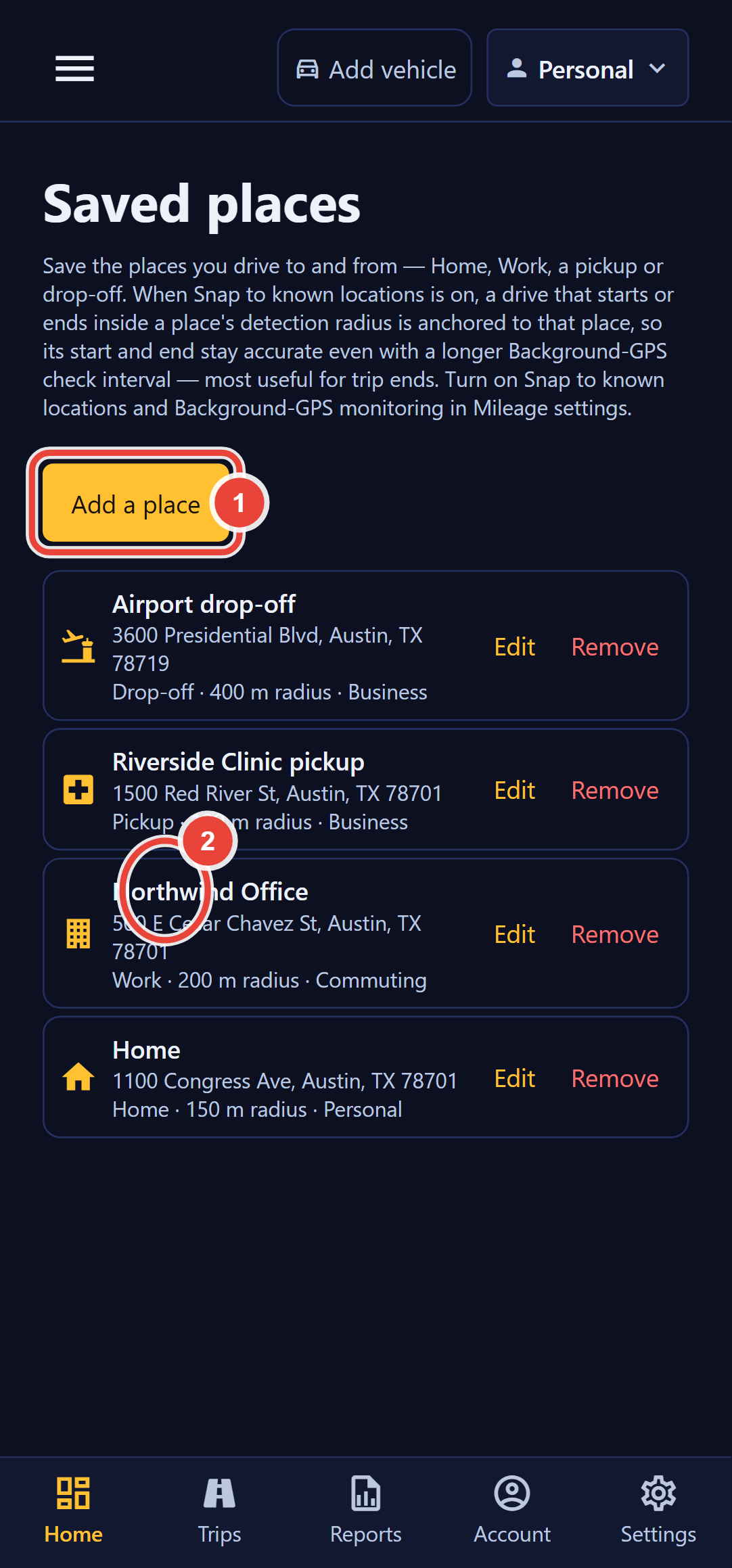
Saved places are stored with your Backbuild account, not on the phone, so they come back when you sign in on a new phone, and they are yours alone: no organization you drive for can see them, and nobody else signing in on the same handset gets them. That matters, because a saved place is usually your home address. To remove a place, choose Remove and then Confirm; there is no undo, so add it again if you remove the wrong one.
Known locations are a different list from the named locations on the Classification rules screen. Named locations are kept on this phone and are what classification proposals use; known locations follow your account, appear on maps, and anchor drives. The first time you open Known locations on a phone that has named locations, Backbuild Miles copies them into your saved places, so you will see them in both lists.
Adding a Place
After this section you will be able to save a place with its pin in exactly the right spot.
- Choose Add a place.
- Give it a Name you will recognise on a map and in a log: Home, Northwind Office, Airport drop-off. Up to 120 characters.
- Under Find an address, type at least three characters, choose Search, and pick the match. The address and the centre coordinate fill in for you. You can also type an address, or a latitude and longitude, by hand.
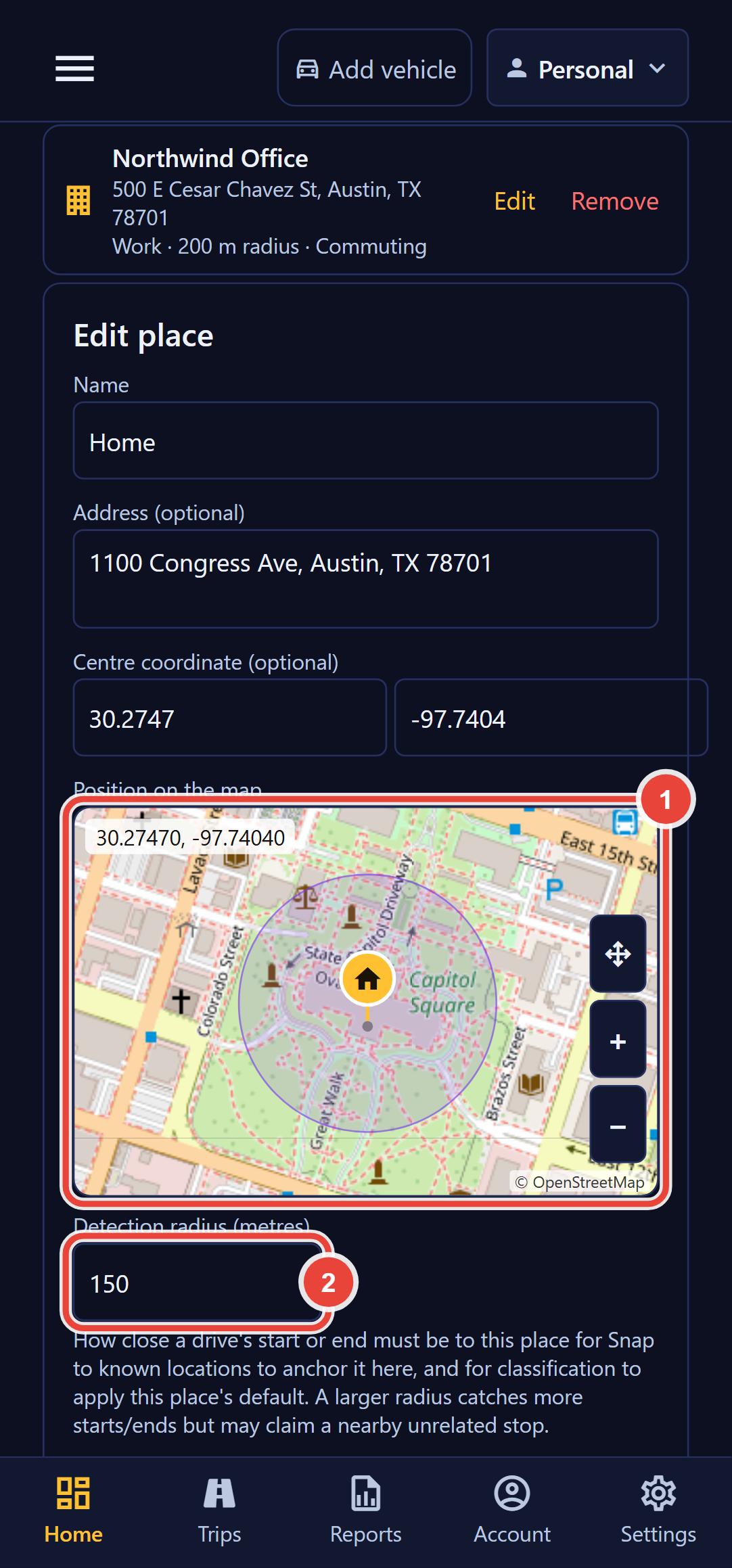
- Check the pin under Position on the map. An address search sometimes lands on the wrong building or the middle of a block. Press Move the map, then drag the map under the fixed centre pin until the pin sits where you actually park. When you lift your finger, the point under the pin becomes the place's centre coordinate.
- Set the Detection radius in metres (see below), and choose a Default classification, a Place type, and a Map marker icon.
- Choose Save place.
Choosing the detection radius
The detection radius is how close a drive's start or end has to be for the app to treat it as this place. It runs from 10 to 20,000 metres, and new places start at 150, which suits a house or a single building. Snap to known locations moves an endpoint onto the place only when it lies inside the radius and no more than 500 metres from the place's centre, so even a very wide radius never moves a recorded point far. Widen it for an airport, a depot or a site with a large car park; keep it tight on a busy street, where the next door along may be somewhere you do not want claimed. The ring on the map grows and shrinks as you type, so you can see what the number covers.
Default classification and place type
- Default classification: Business, Commuting, Personal, or No default. It is stored with the place and shown in its details on the map; Home is usually Personal and your regular workplace Commuting, while a client site or a pickup point is usually Business.
- Place type: Home, Work, Pickup, Drop-off, or Place. It labels the place in the list and sets the icon the map uses when you leave the marker icon on Default.
Picking the Marker Icon
After this section you will be able to give each place an icon you can pick out on a busy map.
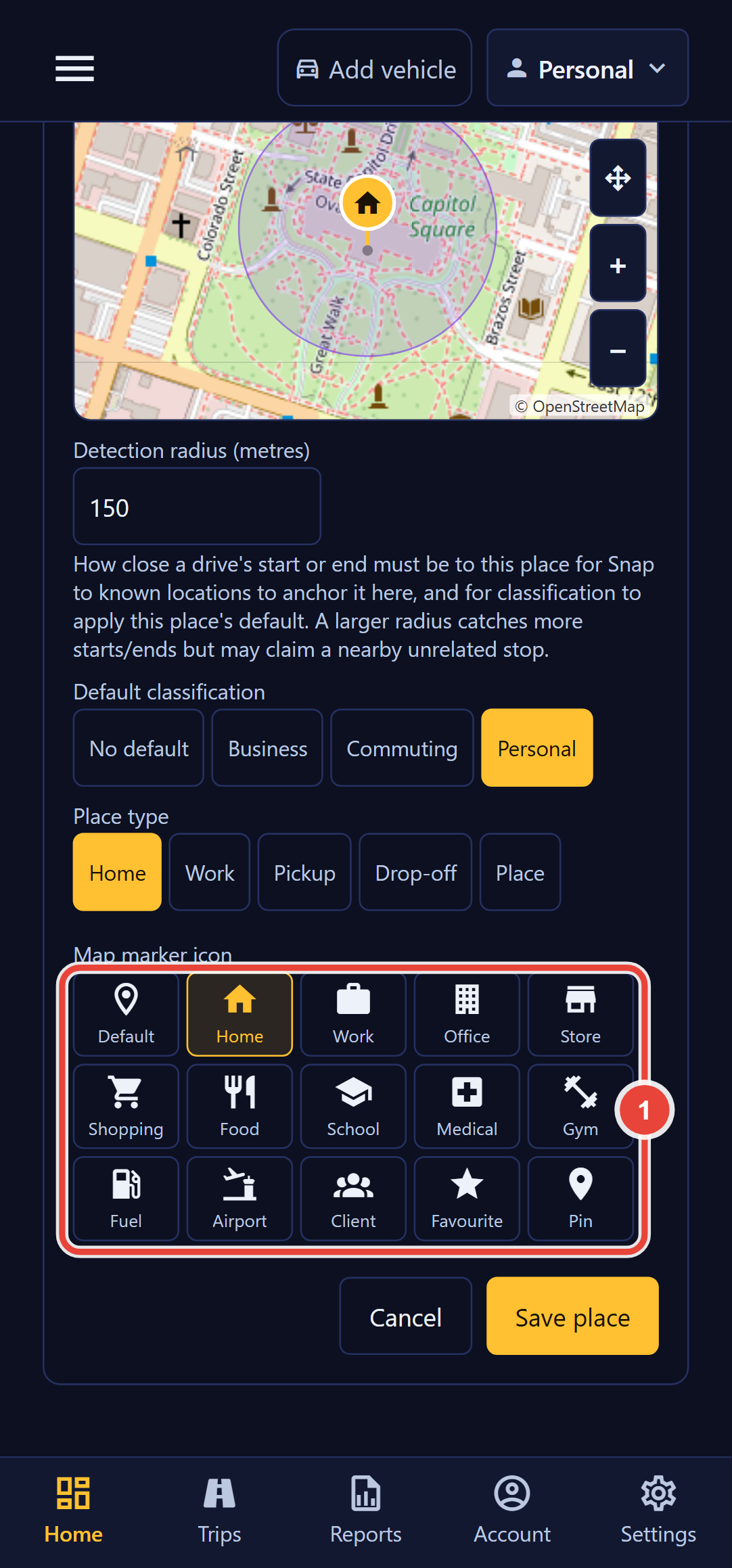
The Map marker icon grid offers fifteen choices: Default, Home, Work, Office, Store, Shopping, Food, School, Medical, Gym, Fuel, Airport, Client, Favourite and Pin. Default uses the icon of the place type, so you only need to choose when two places of the same type would otherwise look alike, for example two client sites, a clinic and a school on the same run, or the airport you drop passengers at.
What the App Does With Your Places
After this section you will know where your places show up and how they change the trips the app records.
- On every map. The route maps on your trip cards and trip details, the live map while you drive, and the map in the place editor all draw each saved place the same way: a round marker with its icon and a translucent ring showing its detection radius. Tap a marker to see the place's name, address and default classification.
- Anchoring drives. With Snap to known locations turned on in Settings, a drive that starts or ends inside a place's detection radius, and within 500 metres of its centre, is anchored to that place, so its start or end stays accurate even with a longer background GPS check interval. It helps most with trip ends; a drive that starts far from every saved place still depends on the interval.
When Saving Does Not Work
- No signal. A save or removal made while the phone is offline waits, and the screen says so; it completes when the connection returns. If the phone reaches the network but not Backbuild, the screen tells you nothing was saved, so you can try again.
- Changed somewhere else. If the same place was edited on another phone while you had it open, your save is refused with a note to reopen it, so neither edit silently overwrites the other.
- The address search cannot be reached. The search says so, rather than showing no results; type the address or the coordinate by hand, or try again when you have a connection.
Common Questions
Can my employer see my home address?
No. Saved places belong to your account and are visible only to you. An organization sees the trips you classify into its books, never your list of places.
Do I need saved places for automatic tracking to work?
No. Tracking records drives without them. Saved places make the start and end of drives to your regular places more precise, and give you markers to read a map by.
How many places can I save?
As many as your regular driving needs. Keep the list to places you actually visit, so the markers on your maps stay readable.
Why does my place show a different icon from the one I chose?
If the marker icon is set to Default, the map uses the place type's icon. Open the place, pick an icon from the grid, and save.
Where to Go Next
- Your Mileage Settings: Snap to known locations, background GPS monitoring, and the map tile cache.
- Classification Rules: work hours, named locations and odometer reminders.
- Reviewing a Trip: the trip map where your places appear.