

Backbuild Containers
A Backbuild container is a real cloud computer you launch on demand, straight from a project, without provisioning a machine or configuring a toolchain. It gives you a terminal, a VS Code editor in your browser, and a graphical desktop, all in one isolated workspace. Your files are saved to a private home folder that survives shutdown, and you pay usage credits only while it is running. After this page you will know what a container is, how to launch your first one and connect to it, what it costs, and where to go for each task you need to accomplish.
Containers are available on every plan, including Free, and run on universal usage credits while they are running. Only running time is metered; a stopped or torn-down container draws nothing. See the pricing page for the credit model.
What You Get
After this section you will understand the shape of the product and which guide answers your question. A container is not a stripped-down shell. It is a complete, disposable environment that bundles the three things most cloud workflows otherwise stitch together from separate services.
- A reconnectable terminal. A real shell that keeps running while you work. If your connection drops, you reattach to the same session, not a fresh one, and full-screen terminal programs render faithfully.
- VS Code in your browser. The open-source build of the VS Code editor, open on your container's files, with extensions from the Open VSX registry and nothing to install locally. Work from a laptop, a Chromebook, or a tablet.
- A graphical desktop. Every container also has a live Linux desktop you can see and control in the browser, for the moments a terminal and an editor are not enough.
- A private home folder that persists. When the container shuts down, your home folder is saved to private storage that only your own containers in that project can reach, so relaunching in the same project picks up where you left off.
- Credit metering you can predict. A per-hour rate is shown on every size card, and while the container runs, its terminal status bar shows a running estimate of the credits the session has used so far. Credits are drawn only while the container runs, and your containers list shows everything you have running so nothing is forgotten.
- Drivable by API and AI agents. The whole container lifecycle is available over the public REST API and to AI agents through native tools, so scripts and agents can launch, drive, and tear down containers without a person at the keyboard.
Launch Your First Container
After this section you will have a running container and know how to connect to it. The fastest path is to launch a small size from a project and open the terminal; the editor and the desktop are there too.
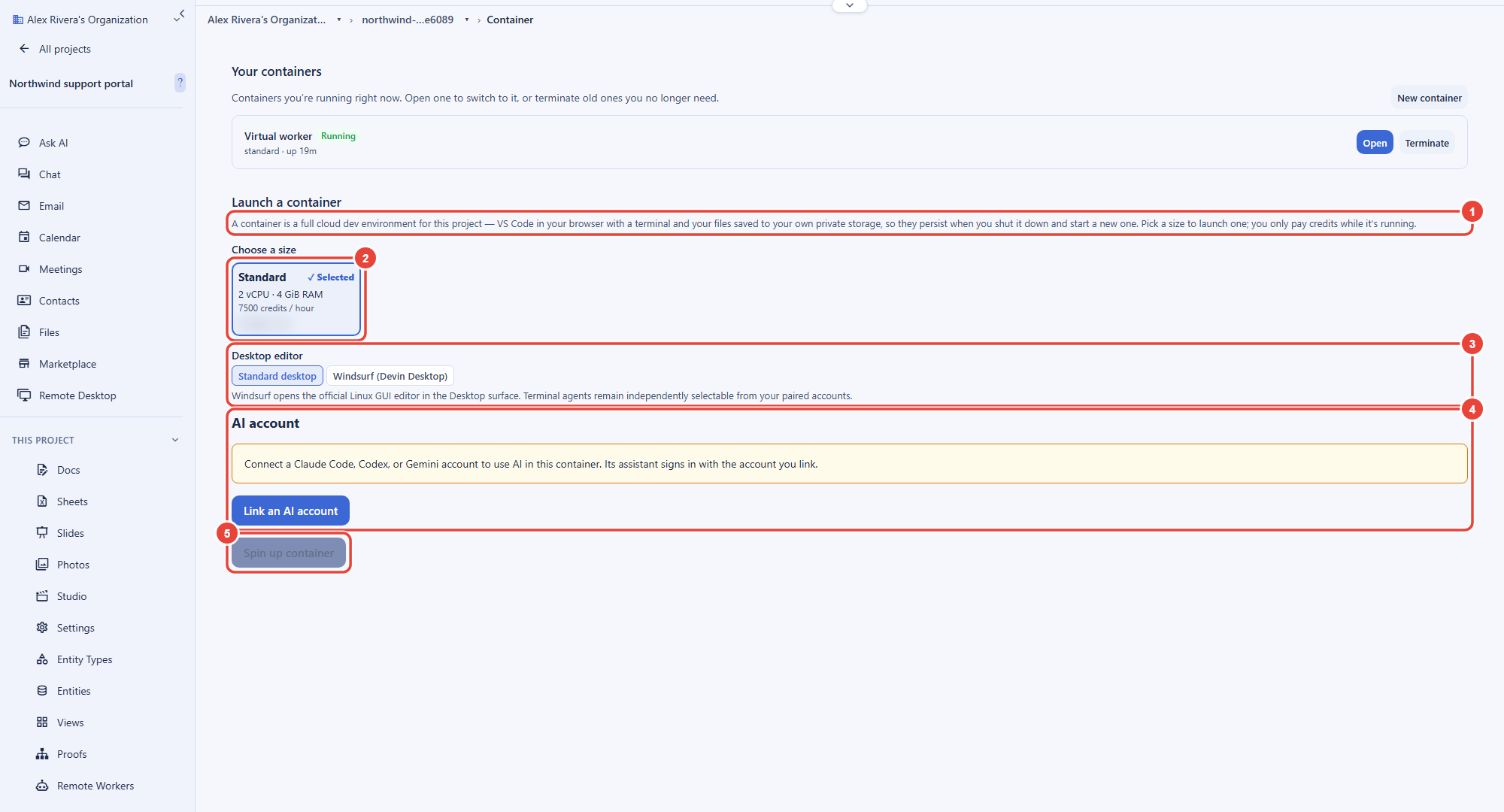
- Open a project and choose AI Container in its sidebar. The Launch a container screen opens; read the short explainer so you know what you are about to get.
- Pick a size. Each card shows the tier name, its vCPU and memory, its credits-per-hour rate, and the backend and region it runs in. Start small; you can launch a larger one whenever a task needs it.
- Choose the desktop editor and the AI account. Leave Standard desktop selected, or pick Windsurf (Devin Desktop). Under AI account, choose the Claude Code, Codex, or Gemini account the container's assistant signs in with, or select Link an AI account if you have none yet. See Launching a Container.
- Spin it up. Click Spin up container. The status badge moves through Queued, Scheduling, Starting, and Running, and the terminal attaches and waits while it provisions. See Launching a Container.
- Work, then close. Use the terminal, editor, and desktop tabs. When you are done, terminate the session from your containers list; your home folder is kept for next time. See Managing Sessions, Persistence, and Credits.
How fast does it spin up? A standard container is often ready in about half a minute; larger sizes and busy periods can take longer. The terminal attaches immediately and shows the status as it provisions, so you watch it come up rather than guessing.
Can I work from a Chromebook or a tablet? Yes. The compute runs in the cloud and everything renders in the browser, so any device that runs a modern browser can drive a container. Only a network connection matters.
Available on Every Plan
After this section you will know what is included and what draws credits. Containers are part of the platform on every plan, including Free. There is no separate container subscription. What you pay is usage credits for the time a container actually runs.
- Running time draws credits. Each size has a credits-per-hour rate shown on its card. Larger sizes draw more. A container that is stopped or torn down draws nothing.
- Real-time syncing to a running container is measured in Real-Time Session Minutes. Every organization includes 10,800 of them free each month, and only active time counts; idle time never does.
- Your home folder is kept between sessions with no separate charge for keeping it.
The pricing page is the authoritative source for current rates and included allowances.
Choose Your Guide
Each guide teaches one job end to end. Start with the one that matches what you need to do.
- Launching a Container: the launch screen, picking a size, the backend and region, the desktop editor, running the in-container AI on your own account, and the status lifecycle from queued to running.
- Terminal, VS Code, and Desktop: the three surfaces in depth, how the terminal reconnects to the same shell, who controls a terminal, the VS Code editor, and the graphical desktop with taking and releasing control.
- Managing Sessions, Persistence, and Credits: your containers list, switching, terminating, and graceful close, exactly what persists, and how credits are charged and kept under control.
- Container Policies and Administration: for admins, restricting which sizes, backends, and regions your team may use, turning containers on or off for one project, giving a contractor containers, the audit trail, data residency, and running Virtual Workers on your own hosts.
- Agents, Automation, and the API: driving a container from an AI agent, the browser and desktop control tools, the isolation posture for running untrusted code, and the public REST API.
- Remote Hosts: for admins, pairing your own Linux machines, the host firewall, your team's OS accounts on them, and running Virtual Workers there instead of on Backbuild's cloud.
- GitHub for Your Team: each teammate links GitHub so their containers run git and gh as them, and one read-only organization credential lets the AI ground answers in your repositories, with every credential sealed in your organization's zero-knowledge vault.
Related Surfaces
Three neighboring capabilities build on containers or sit beside them. Choose by what you are trying to do.
- Virtual Workers: when you want an autonomous AI worker to operate a container for you, under your organization's roles, vault, and audit trail, rather than driving it yourself.
- Remote Desktop: the sidebar screen that lists your signed-in devices and your running containers, and opens a container's desktop in the browser.
- Sandbox Execution: the API-first, disposable code-execution model for agents and test runs, with session persistence, a git clone on provision, and artifact download.
What a Container Is Not
Choosing well means matching the tool to the requirement. A Backbuild container is a disposable cloud computer for interactive development, agent work, and graphical tasks. It is not a permanently-on server for hosting a production service, and it is not a replacement for your organization's managed deployments. Its home folder persists, but the running machine is meant to be started for work and stopped when the work is done, which is exactly what keeps it inexpensive. If you need an always-on workload, host it on a deployment rather than leaving a container running.