

The Vault in the Browser Extension
This guide teaches you what the Backbuild browser extension does with your Secrets vault in this release: unlocking and locking together with the web app, answering a second-factor check from the popup, and keeping your credentials out of an AI agent's reach. It also says plainly what is still to come, so you know where to work in the meantime.
Availability
The Backbuild browser extension is a single cross-browser build coming to the Chrome Web Store (for Chrome, Edge, Brave, Opera, and other Chromium browsers), to Firefox Add-ons, and to the App Store as a Safari extension. The public store listings are marked Coming Soon on the download page. Your vault itself is available today in the Backbuild web app and the Windows and macOS desktop apps, and the extension already powers the browser inside Backbuild's on-demand containers.
This page focuses on the vault. The extension does more: it connects the accounts you are signed in to, lets an AI agent drive the sites you allow with a one-click stop, copies one-time setup instructions for your own agent, and connects local agents through its gateway. Those capabilities, and the administrator rollout, are covered in The Backbuild Browser Extension.
What Works Today, and What Is Still to Come
After this section you will know where to do each vault task. In this release the extension unlocks, locks, and guards your vault; it does not yet work with your logins on websites.
- Today in the extension: unlocking with your master password or from your open Backbuild tab, locking together with the web app, one shared idle lock, answering a fresh second-factor check in the popup, registering the browser as a device factor, and keeping every credential field out of an AI agent's reach.
- Still to come: filling logins on websites, offering to save or update a login as you sign in, showing one-time codes beside logins, generating passwords and browsing entries in the popup, and importing from other password managers.
- Until then: browse, copy, and generate in your vault in the Backbuild web app or desktop app (see Vaults, Items and the Password Generator). A secret you copy there is cleared from the clipboard about forty-five seconds later while the app is in focus.
Unlock and Lock in Step with the App
After this section you will unlock once and lock once. Open the extension's popup from its toolbar icon. It names the account you are acting as and shows whether its vault is locked. The extension and the Backbuild web app keep one vault state:
- Unlock once. Unlock the vault in the app and the extension unlocks within seconds, without asking for your master password again. You can also unlock in the popup with your master password, or choose Unlock from your open Backbuild tab.
- Lock once. Choose Lock in the popup and the app's Secrets screen locks too. Locking in the app, and signing out of it, reach the extension the same way.
- One idle rule. Each account's vault locks after ten minutes without use, and use in either the app or the extension counts for both.
- Each account on its own. If you connected several accounts, each has its own lock state, so unlocking one never unlocks another.
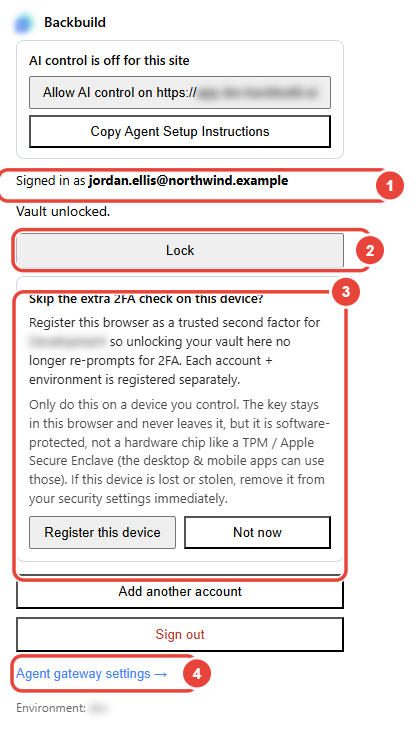
When unlocking needs a fresh second-factor check, the popup asks for it: type an authenticator code in the popup, or choose Verify in Backbuild to confirm in the app (with a passkey, for example). The extension finishes the operation on its own once the check passes; the verification page hands it no password, key, or token.
To stop being asked for that check on this browser, register it as a device factor from the card in the popup (see A device factor for two-step verification). In the extension the device key is software-protected and never leaves the browser, and the popup says so before you register.
Your Credentials Stay Out of an Agent's Reach
After this section you will know what an AI agent can see. When you let an AI agent drive a site in your browser, it can never type into or read a password, one-time-code, or other credential field, never use the extension's own pages, and never reach a field behind an open dialog, such as the form behind the vault's unlock prompt. In Backbuild it can never press a control that reveals or copies a secret, such as Show or Copy on your recovery kit or on a vault field, and never grant a worker access to a vault or authorize a machine for you. Screenshots and page reads are refused while a credential field has focus or shows its value, or while Backbuild is showing a secret, and a page read never returns what was typed into a text field. If you allow AI control on the Backbuild app's own site, the agent works in the app as you and sees what the app shows without a reveal, such as the names in your vault, so lock your vault first if it should not see those. See What an agent can and cannot do there.
When Autofill Arrives
Autofill is designed to be strict, because a password manager that fills too eagerly becomes a phishing tool. It is designed to work only on the sites you authorize, to offer a login only on the same registrable domain it was saved for, never down a downgrade from a secure connection, never into a hidden or off-screen field, and only after your click on the extension's own prompt, without submitting the form for you.
Do I have to unlock the app and the extension separately?
No. Unlocking in the Backbuild web app unlocks the extension within seconds,
and locking either one locks both, so one unlock serves the session.
Does the extension fill my passwords on websites yet?
Not in this release. Copy a login from your vault in the web or desktop app
for now; the copy is cleared from the clipboard about forty-five seconds
later while the app is in focus.
Can an AI agent driving my browser read my passwords?
Not from a credential field or from your vault. An agent can never type into
or read a credential field, never press a control in Backbuild that reveals or
copies a secret, and gets no screenshot or page read while a credential field
has focus or shows its value, or while Backbuild shows a secret. If you allow
the Backbuild app's own site, lock your vault first if the agent should not see
what the app shows without a reveal, such as the names in your vault.
What if I forget my master password?
Backbuild cannot recover it or reset it. Use the recovery kit you saved when
you set up the vault; see
Unlocking, Device Factor and
Recovery.
Next Steps
- The Backbuild Browser Extension: connecting accounts, supervised AI browser control, agent setup instructions, the device factor, and administrator rollout.
- Unlocking, Device Factor and Recovery: unlock with a device gesture and set up your way back in.
- Vaults, Items and the Password Generator: the entries you store, and the generator.