

Autonomy and Approvals
The question every buyer of an AI worker asks first is: what can it do without me? This guide answers it precisely, separating what the platform enforces from what your settings record. A worker's help desk runs come back as internal draft notes for a person to review; each capability is recorded as supervised or autonomous; two actions, sending external email and pushing code, can never be set to autonomous; and a worker can be paused or fired at once. After this page you will be able to set a worker's autonomy per capability, know exactly which protections are enforced, work the approval queue, and stop a worker instantly.
Autonomy is set per worker and per capability, on every plan. The server keeps sending external email and pushing code set to supervised, and no setting can change that.
What the Platform Enforces
After this section you will be able to tell a security reviewer which protections hold no matter what the worker does.
- Help desk state runs come back as drafts. When a worker works a ticket that reached a workflow state it is assigned to, the platform posts its output on the ticket as an internal note marked as a worker draft. The customer never sees the note itself: it is a draft for a person to review, edit, and send, or discard.
- The floor cannot be switched off. Sending external email and pushing code can never be set to Autonomous. The server stores them as supervised whatever a request asks for. Like every autonomy setting, the floor records the rule; the limit below explains what that means for container workers.
- Workflow gates stay with people. A worker can only move a ticket along a transition its workflow defines, and a transition marked human-only is never taken by a worker; see Human-Only Transitions.
- The role is the ceiling. A worker can only use the tools its permission role allows, and nothing in a ticket or a message can widen that; see Security and Governance.
One limit matters for container workers. A worker that runs coding agents in a container acts through its tools while it works, within its permission role, and the agent can post a reply in a ticket's customer-visible thread when its instructions or the ticket lead it to. The autonomy settings below do not block that at the moment it happens. Write operating instructions that tell the worker to draft for review, watch its first runs, and assign it only to the workflow states you trust it with.
The Per-Capability Autonomy Settings
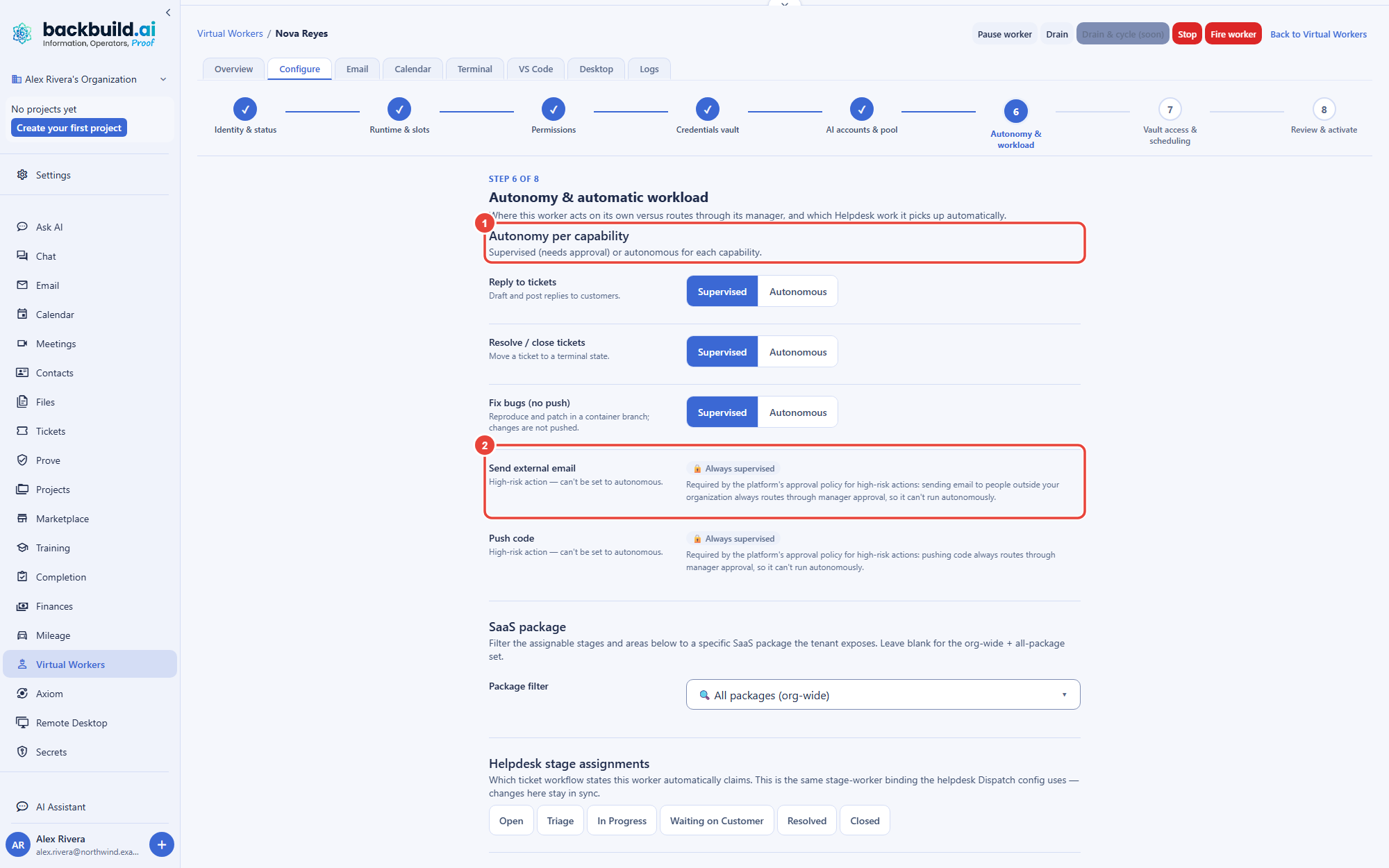
After this section you will be able to record, per capability, what you allow a worker to do on its own. On the hire form, under AI settings, then Autonomy, and afterward in step 6 of the worker's Configure wizard, each capability is set to Supervised or Autonomous on its own. Every capability starts supervised. The capabilities are:
- Reply to tickets. Drafting, or posting, a reply.
- Resolve / close tickets. Advancing or closing a ticket. This is a separate setting from replying; to keep every close with a person, also mark the closing transitions human-only.
- Fix bugs (no push). Code work in a container up to, but not including, pushing.
- Send external email and Push code, shown locked as Always supervised.
Because reply and resolve are distinct settings, and closing transitions can be made human-only, you avoid the classic trap where deflection climbs while quality falls: a worker can help draft answers on a queue for weeks while every close stays with a person. Change a setting as the worker's transcript earns your trust, and change it back just as easily. Every change is audit-logged.
Can a worker send a message to a customer without me? Its help desk runs come back as internal drafts, so a reply from that path reaches the customer only when a person sends it. A worker that runs coding agents in a container can post on a ticket it is working through its own tools, so give it clear drafting instructions and review its first runs. An automation rule that hands a ticket to a worker posts the worker's reply publicly; see Scheduled and Event-Triggered Runs below.
Can I let a worker close tickets but not reply, or reply but not close? You can record either: reply and resolve or close are separate settings. To make sure a worker never closes, mark the closing transitions human-only, which stays with people whatever the worker is set to.
The Approval Queue
After this section you will be able to review and decide the approval requests open for your workers, and know what a decision does. While any request is open, the roster shows a Pending approvals card. Each row names the worker and the capability in question, with the reason given, and offers Approve or Deny. The worker's human manager, or an organization administrator, decides, and every decision is audit-logged.
Know the limits of the queue in this release. A request is opened through the public REST API by someone who can manage your organization's settings; a worker does not open one on its own. A decision records your answer; it does not start or resume any work by itself. The protections a worker cannot get around are the ones under What the Platform Enforces, at the top of this page.
Pausing and the Kill Switch
After this section you will be able to stop a worker instantly if it goes sideways. On the worker's page, Pause worker stops handing it new work at once; setting its status to Paused in Configure step 1 does the same. Work already in progress finishes, and the worker takes no new work, on shift or off, until you resume it. Pausing does not itself close a running container. To end what is running right now, select Stop, which closes the worker's container at once. If you want the worker gone, fire it: firing moves the worker to the Deactivated tab, where it keeps its configuration and can be re-hired later, so letting a worker go is reversible and never destroys its setup.
When you need the worker's container restarted rather than the worker stopped, use Drain on the worker's page: it fences off new work, lets the worker finish what it is already doing, and then closes the container cleanly, so nothing in flight is cut off. Stop closes the container at once. Every control and when to use it is in The Worker Page.
Can I turn a worker off immediately? Yes. Select Pause worker on its page and it stops taking new work at once, and select Stop to close its container and end what is running. Fire it and it is deactivated but kept, so you can re-hire it later with its configuration intact.
What happens to work in progress when I stop a worker? Pause lets the task in progress finish. Stop closes the container at once, so the task ends where it was; anything the worker had already posted or saved stays as it is, and anything it had not stays undone.
Scheduled and Event-Triggered Runs
After this section you will understand how a worker starts a run on its own, without a person clicking start. A worker does not only act when you open it. An automation rule can start a run on a schedule, on a fixed date and time, or on a help desk event such as a ticket being created or updated, and hand it to an AI agent or a Virtual Worker running one of your skills, or to a script. A rule that hands its run to a Virtual Worker goes through the worker when a help desk event fired it for a ticket. In this release a rule fired by a schedule or a date runs as an ordinary AI agent run instead, not as the worker and not in its container. Rules for mail, calendar, record, and alert events are not triggered automatically in this release. A support worker assigned to a ticket workflow state is the event-triggered case in everyday use: with auto-dispatch on, when a ticket reaches that state the worker picks it up on its own, with no person in the loop to hand it the work, and its output comes back as an internal draft. Scheduled rules add the time dimension for AI agent runs and scripts, so a run can fire every morning, every Monday, or on a set calendar date.
Know which way the output goes. When an automation rule hands a ticket to a Virtual Worker, the worker's output is posted back to the ticket as a public reply from the worker, which the customer sees. Use an automation for replies you are ready to send without review, and a workflow state assignment for work you want drafted first.
Where to Next
- Support Workers: how drafts as internal notes and the reply-versus-resolve settings play out on a real help desk.
- Developer Workers: the no-push floor in practice, and preparing a change for human review.
- Security and Governance: the audit trail, the permission ceiling, and how a worker's credentials are handled.
- The Configure Wizard: where the autonomy settings live after hiring.