

Backbuild Docs
Backbuild Docs is the document editor built into your Backbuild workspace. You draft, format, and collaborate on one live copy of a document, and you produce the polished deliverable, a Word file, a PDF, a Markdown export, without moving to a second tool. It is the same editor a marketer uses for a proposal, a research group uses for a paper with equations and citations, and a legal team uses to redline a contract. After this page you will know what Backbuild Docs does, how to create your first document, what is included on every plan, and which guide answers the job in front of you.
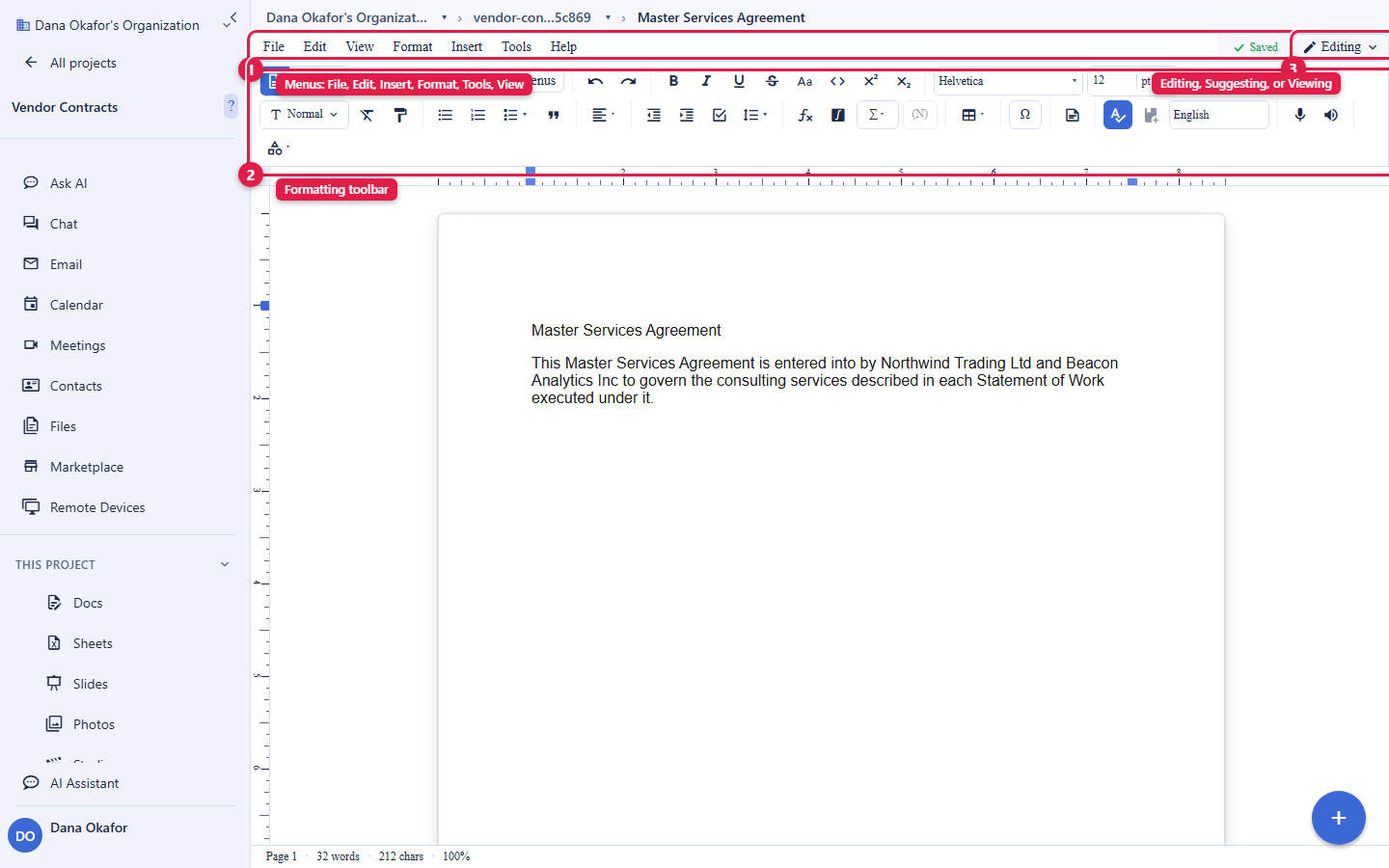
What You Get
After this section you will understand the shape of the product and which guide answers your question. Backbuild Docs is a full document editor, not a lightweight note pad. It gives a word processor's formatting and a modern editor's live collaboration in one place, so the draft and the final deliverable are the same file.
- Real-time co-authoring, on every plan. Everyone works on one live copy at the same time. Edits merge automatically, so two people typing in the same paragraph never overwrite each other. There is no per-collaborator seat charge to co-author a document.
- Format for a professional deliverable. Headings and named styles, alignment and spacing, tables, images, headers and footers, page size and margins, columns, and section breaks. The document holds up at length, so a long report does not fall apart the way a large file can in a browser-only editor.
- Review and redline. Turn on Suggesting to propose tracked changes that carry an author and a timestamp, accept or reject them one at a time or all at once, and compare or combine two versions. This is the contract-negotiation workflow, built in.
- Bring work in and take it out. Import from Microsoft Word, OpenDocument, RTF, HTML, and Markdown; export to Word, OpenDocument, HTML, Markdown, RTF, EPUB, and plain text; and print to PDF. Nothing is trapped in a proprietary format.
- Write with math and citations. Insert live equations, tables, footnotes and endnotes, cross-references, a table of contents, and inline citations in APA, MLA, Chicago, IEEE, Vancouver, or Nature style with a bibliography that builds itself.
- Drivable by AI and by API. An AI assistant works inside the document, and the whole document surface is available over the public REST API and as native MCP tools, so agents and scripts can create and edit documents the same way you do.
Create Your First Document
After this section you will have a working document open and know it is saved. There is nothing to install and nothing to configure. If you can use a word processor, you already know how to start.
- Open a project. Documents live inside projects, the same containers that hold your files, tasks, and data. Open an existing project or create one from the workspace.
- Create a document. Inside the project, choose New, then Document. A blank document opens in the editor, ready to type.
- Type. Start writing. Every keystroke is saved to the live copy as you go, so there is nothing to remember to save and nothing to lose if you close the tab; File, Save only confirms it.
- Format. Use the toolbar or the Format menu to apply a heading, bold a phrase, or start a list. Click anywhere on the page, including the margin or below the last line, to place your caret exactly where you want it.
- Share or export when you are ready. Share the document with a colleague from File, Share, or use File, Download as Word (.docx) to produce a Word file, or File, Print to save a PDF.
Is this too technical for a non-technical writer? No. Backbuild Docs opens as a plain, formatted page and behaves the way a familiar word processor does: type, use the toolbar, share it with a colleague. The advanced capabilities (math, citations, tracked-change redlining) are there when a document needs them and stay out of the way when it does not. You never have to learn a markup language to use it.
Included on Every Plan
After this section you will know what is free and what draws credits. Backbuild Docs is part of the free workspace, next to Backbuild Sheets, Backbuild Slides, Backbuild Mail, and Backbuild Calendar. There is no separate document-editor subscription and no paywall on the collaboration features that make it useful.
- Free on every plan, including Free: the editor itself, real-time co-authoring, comments, tracked changes and Suggesting mode, version history, and the formatting, page-layout, table, math, and citation surface.
- No per-collaborator seat gate: inviting someone to comment on or co-edit a document does not cost a separate seat.
- What draws universal usage credits: the in-document AI assistant (unless you bring your own AI provider keys, in which case that usage is billed by your provider, not by Backbuild), and file storage for images and attachments beyond your plan's included allowance.
- Paid-plan capabilities: Download as LaTeX, the Source and Split views, and the Pageless layout are available on the Backbuild Lite, Pro, and Enterprise plans, or with Backbuild Prove or Backbuild Science. Every other export format is on every plan.
The pricing page is the authoritative source for current allowances and rates. See Usage and Credits for how metering works.
Choose Your Guide
Each guide teaches one job end to end. Start with the one that matches what you need to do.
- Writing, Formatting, and Page Layout: the editing surface and its three access modes, headings and named styles, paragraph and page formatting, page size and margins on a live ruler, columns, section breaks, and tab stops.
- Real-Time Collaboration, Comments, and Sharing: co-edit one live copy, see who is present, leave, assign, and resolve comment threads, and share a document at Viewer, Commenter, Suggester, or Editor access, removing a share at any time.
- Suggesting, Tracked Changes, Compare, and Combine: propose edits as attributed tracked changes, accept or reject them, produce a clean copy and a marked-up copy, and compare or combine two versions.
- Images, Tables, Math, and Citations: paste a screenshot inline, build tables, write live equations, add footnotes and cross-references, and insert citations with a self-building bibliography.
- Importing and Exporting: bring in Word, OpenDocument, RTF, HTML, and Markdown; take out Word, PDF, Markdown, EPUB, and more; and use version history to restore an earlier draft.
- AI Assistance, the API, and Agents: translate and continue writing with the in-document assistant on your own AI keys or credits, record macros, and drive documents over the REST API and MCP tools.
What Backbuild Docs Does Not Do Yet
Choosing well means matching the tool to the requirement. Backbuild Docs renders your document live as you write rather than running a queued typesetting compile, so there is no per-compile time limit and no compile-minute meter, but there is also no in-editor typeset PDF build, and the Download as PDF item in the File menu is not available yet: you produce a PDF by printing (File, Print, save as PDF) and, for a submission-ready LaTeX build, you download the LaTeX source that your journal or pipeline compiles. It does not yet keep a reference library: you cannot import a BibTeX library, look a source up by DOI, or sync with a reference manager such as Zotero or Mendeley, and a citation carries the author and year you type. The Insert menu lists Citation from library and Import references (.bib), but the reference library behind them is not available yet. These are tracked as requested features, and this documentation is kept current as they ship. Where a job needs one of them today, the guides above say so plainly rather than implying a capability that is not there.