

The Waiting Room and Moderation
This guide teaches how a host keeps a meeting safe and orderly: deciding who comes in, one person at a time; locking the room once everyone is there; spotlighting the person who should have the room's attention; and removing someone who should not be there. After this page you will run a meeting no one can walk into uninvited.
The Waiting Room
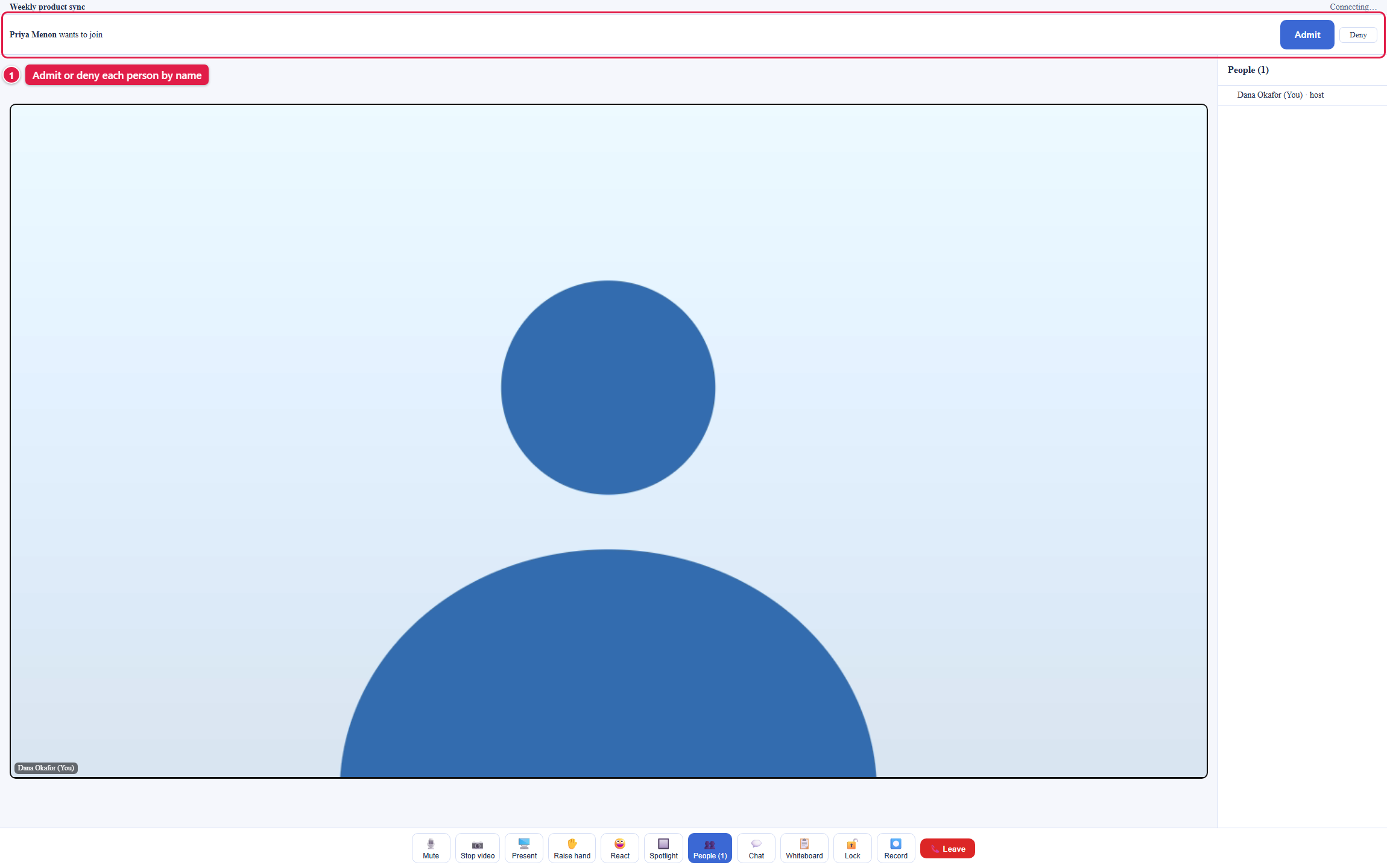
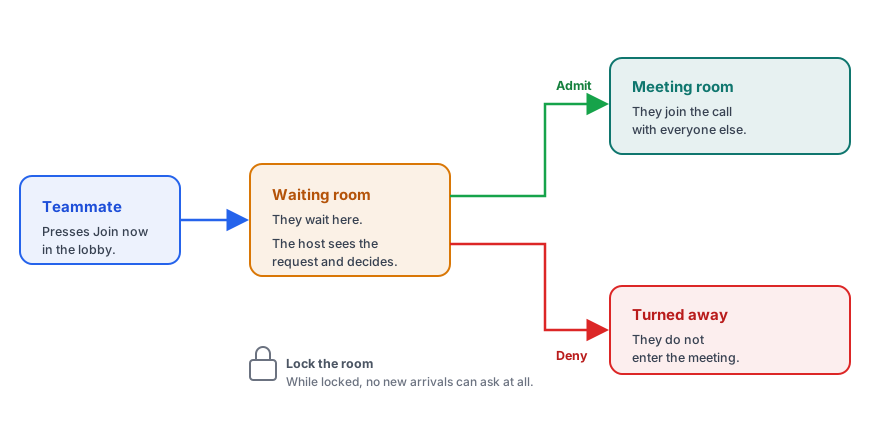
After this section you will decide who gets in. Every meeting has a waiting room, and it is always on. The host goes straight in; everyone else, including teammates you invited, presses Join now in their lobby and waits. Their screen says Asking to join, and you see a bar across the top of the room with their real name: a person, not a mystery entry.
- Admit lets the person in. Their screen brings them into the room within seconds, with nothing for them to refresh or retry.
- Deny turns them away. Their screen says you declined, and they can ask again later.
- Requests arrive as they happen. A request appears the moment someone asks, so you decide on each person as they arrive.
Locking the Room
After this section you will close the door once everyone is in. Press Lock on the control bar and no one new can enter: anyone who tries sees that the meeting is locked, and cannot even ask to join. A lock mark shows in the status bar while it is on. Press Unlock to let a latecomer you do want ask to join again.
How do I stop uninvited people from getting in? The waiting room already means no one enters without your Admit. Lock the room once everyone you expect is there, and no one else can even ask.
Spotlighting a Speaker
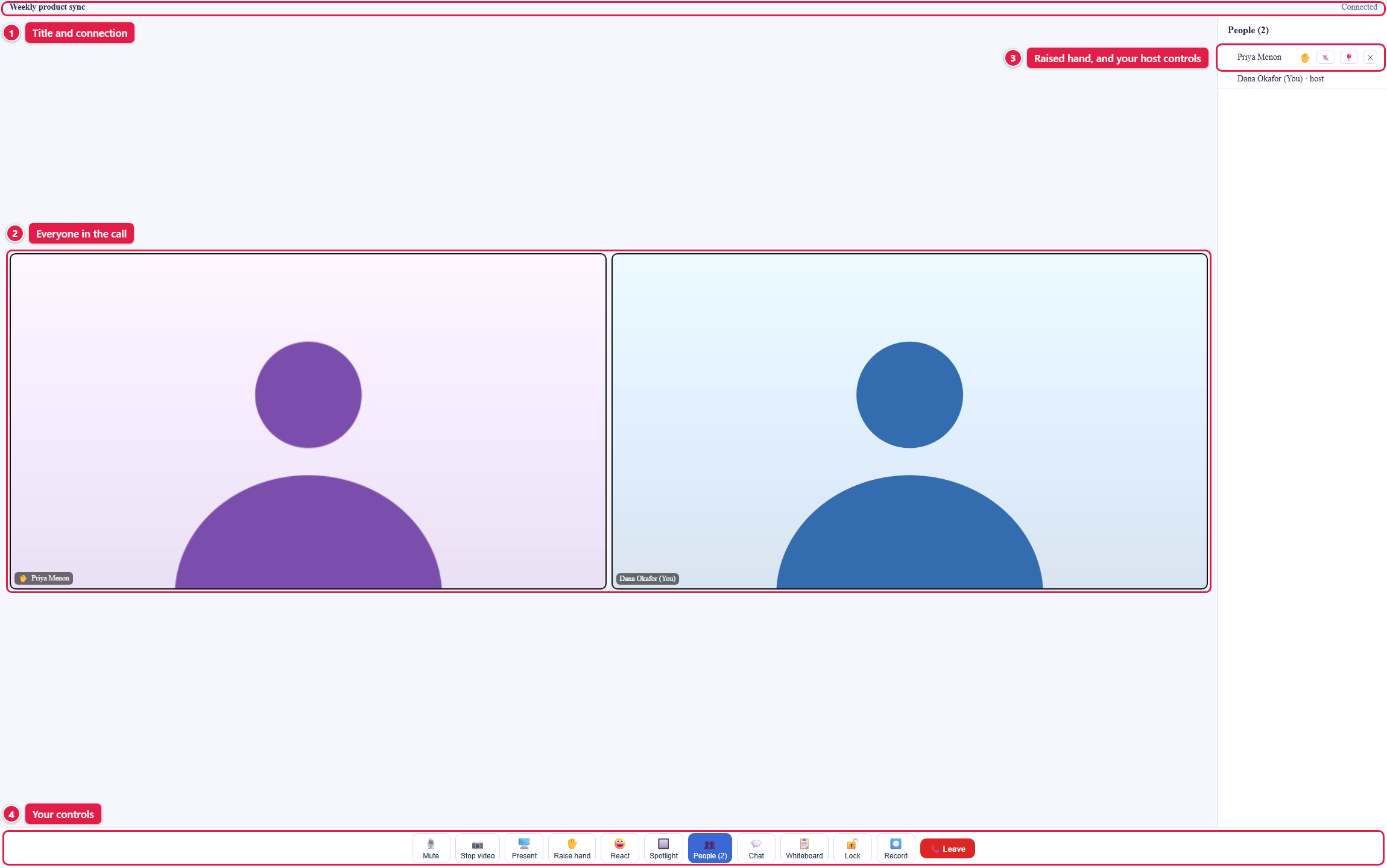
After this section you will put the right person front and center. Open People, then press the pin on a person's row to spotlight them on the main stage for everyone, whoever is speaking. Press it again to return everyone to the grid. A shared screen takes the main stage on its own.
Removing Someone
After this section you will get a disruptive person out and keep them out. Open People and press the cross on the person's row. They leave the room at once, their screen says they were removed, and they cannot come back into that meeting.
Muting Someone Else
After this section you will deal with a noisy line. Ask the person to press Mute on their own control bar, and remove them if the noise continues. The mute control on a person's row in People does not turn off their microphone yet.
Who Can Moderate
After this section you will know who holds these controls. The person who creates a meeting is its host and holds every control on this page: admit and deny, lock, spotlight, and remove. There is no co-host control in the app yet, so plan for the host to run the door for the whole meeting. Any active member of your organization can create a meeting and so host it; the administrator view is in Administration and Security.
Frequently Asked Questions
Does an admitted person have to refresh or rejoin? No. The moment you press Admit, the person enters the room automatically.
What happens to people already in the room when I lock it? Nothing; they stay. Locking only stops new arrivals.
Can a removed person rejoin with the same link? No. Removal from a meeting is permanent for that meeting.
Can I let people in without approving each one? Not yet. Every person except the host waits for your Admit.